Build a playbook
A playbook collects plays from your library in the order you choose, grouped into sections, with an introduction for your team.
A playbook puts plays and drills that belong together in one place, most often everything your team runs this season, organized into sections like half-court offense or out-of-bounds sets. You hand it to your team, or another coach, as one. Share it as a link or print it as a PDF.
Create a playbook
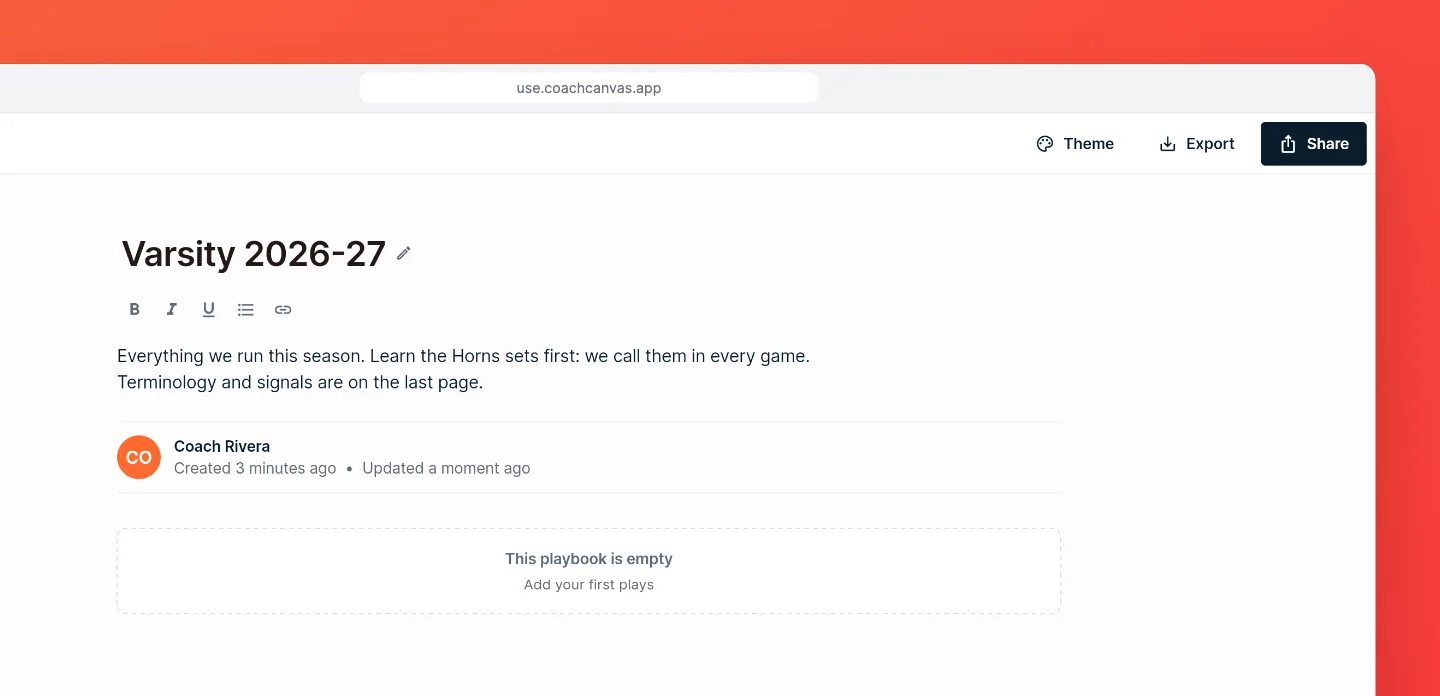
On the dashboard, choose Create new, then New playbook. The playbook opens empty and untitled.
Click the title to name it. The description below is your introduction for the team: your philosophy, your terminology, what to learn first. It takes bold, italic, bullet lists and links. Changes save automatically.
Add plays from your library
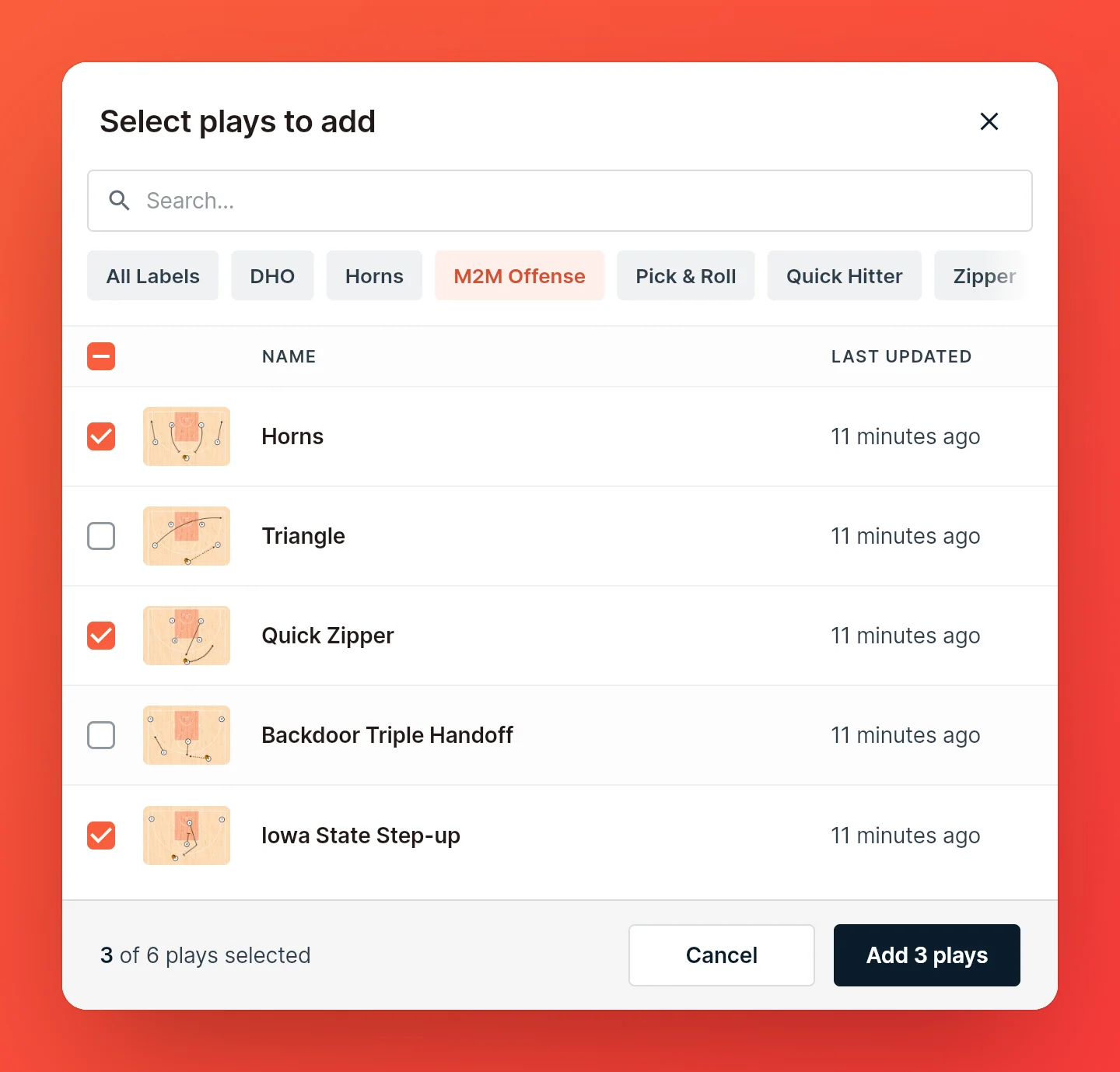
In a new playbook, click the "This playbook is empty" card. Once the playbook has plays, use Add Plays above the list instead.
Search by name or filter by label, tick the plays you want and add them. New plays go to the end of the playbook. Plays already in the playbook don't appear in the list.
Add plays from the dashboard
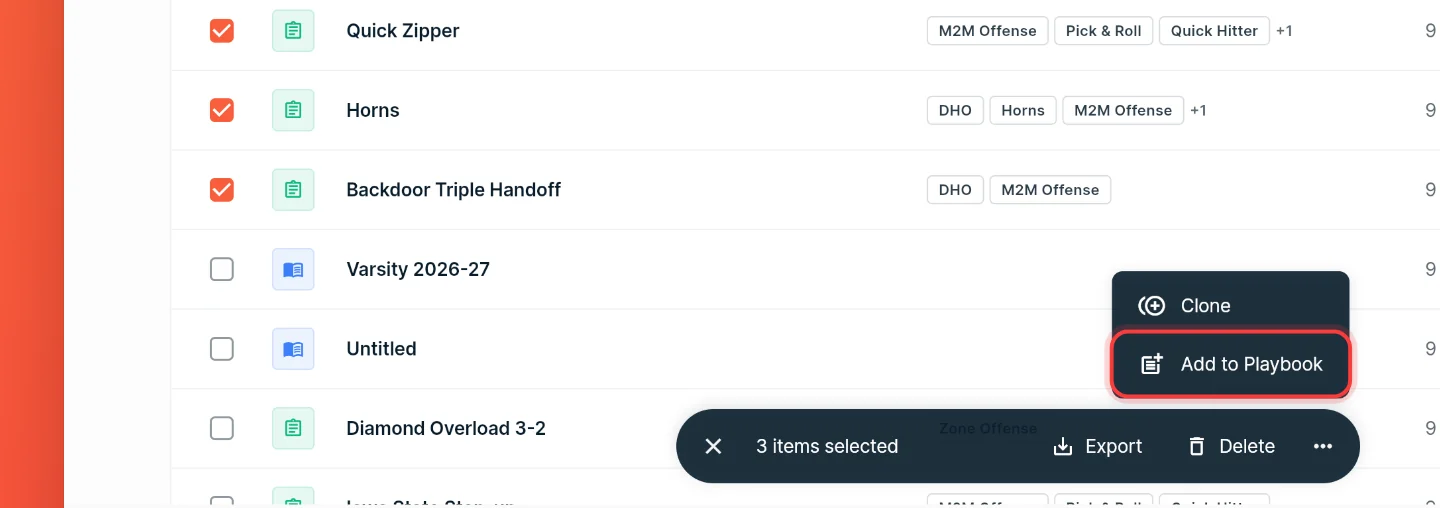
You can also add plays to a playbook from the dashboard. Select the plays by ticking their checkboxes on a computer, or on a phone by long-pressing one play and tapping the others. In the toolbar, open the menu and choose Add to Playbook.
Pick a playbook, or create a new one, and confirm. Plays added this way go above the first section.
Organize plays into sections
Sections group plays under a heading, such as Sets, BLOB or Press break. Choose New Section above the list and type its title. New sections go at the end of the playbook.
Each section's menu can add plays straight into that section, rename it (double-clicking the title does the same) or remove it. Removing a section takes its plays out of the playbook too; they stay in your library.
Plays that aren't in any section sit at the top, before the first section.
Reorder plays and sections
Drag plays to change their order or move them into another section. Drag a section's title to move the section with its plays. On a computer, grab the handle that appears on the left when you hover. On a phone or tablet, press and hold, then drag.
Remove a play
Open the play's menu and choose Remove play. The play stays in your library and in any other playbook it's in.
Style your playbook
Give the playbook your team's colors and logo. Choose Theme at the top of the playbook to open the Playbook Theme panel. On a smaller screen it opens as a dialog. Every change shows on the playbook straight away, so you can try things out.
- Style presets start you from a finished look: one of the default presets, or a preset you saved with Save as Preset.
- Backdrop is the color or gradient around the playbook. None fills the page without a card.
- Header logo and Footer logo sit at the top and bottom of the playbook. Choose Upload logo and pick a PNG, JPG, WebP or SVG of up to 5 MB. A logo with a transparent background looks best.
- Court colors set the surface, the paint and midcourt, and out of bounds. Court texture adds wood grain or concrete. Cones take their color from the theme too.
Choose Save when you're done. Reset changes goes back to the last saved theme.
The theme shows wherever the playbook goes: on the shared link and in PDF and image exports.
Note: Saving a theme with your own colors or logos needs Pro. Without it, you can still try every option. Choose Upgrade to Save to keep them.
Team branding
If your team or club has branding set up in CoachCanvas, it's listed first under Style presets. While a playbook uses it, the colors and logos come from the branding and the panel shows which one. To make it the default for new playbooks, open the menu under your profile picture on the dashboard and choose Team Branding. Existing playbooks keep their own theme.
When the playbook is ready, print it or export it as a PDF, or share a link with your team.
FAQ
Can a play be in more than one playbook?
Yes. Add the same play to as many playbooks as you like.
If I change a play, does the playbook change too?
Yes. A playbook doesn't hold copies: it points to the plays in your library, so every edit shows up in every playbook that has the play. For a version that belongs to one playbook only, select the play on the dashboard, choose Clone from the menu and edit the copy.
How do I edit a play from the playbook?
Click a play to view it inside the playbook. On a large screen, the play's menu also has Edit play, which opens it in the editor. On a phone, open the play from the dashboard to edit it.
What happens if I delete a play or a playbook?
Deleting a play from your library removes it from every playbook too. Deleting a playbook leaves its plays in your library.
Does a playbook count against the free plan's 30 plays?
Only the plays do. Adding a play to a playbook doesn't create a new play, so it doesn't use up your limit.