Install the team app
The team app turns each shared playbook into its own app on your players' home screens, under its name and with your icon, without an account or the App Store.
What your players get
Every shared playbook can be its own app. Turn it on, and players install the playbook on their phone like any other app: it sits on the home screen under the playbook's name and your icon, opens with one tap and works offline. Players need no account and pay nothing.
Coach more than one team? Each team's playbook becomes its own app, with its own name and icon, so players only ever see their own team's plays.
The team app is a Pro feature, for shared playbooks only, not single plays.
Turn on the app
First share the playbook. Then, in the share dialog, choose Enable mobile app and confirm. Without Pro, you're asked to upgrade first and come back to this screen afterwards.
The dialog then shows the app as active. Send your players the same link as before: the app has no separate link.
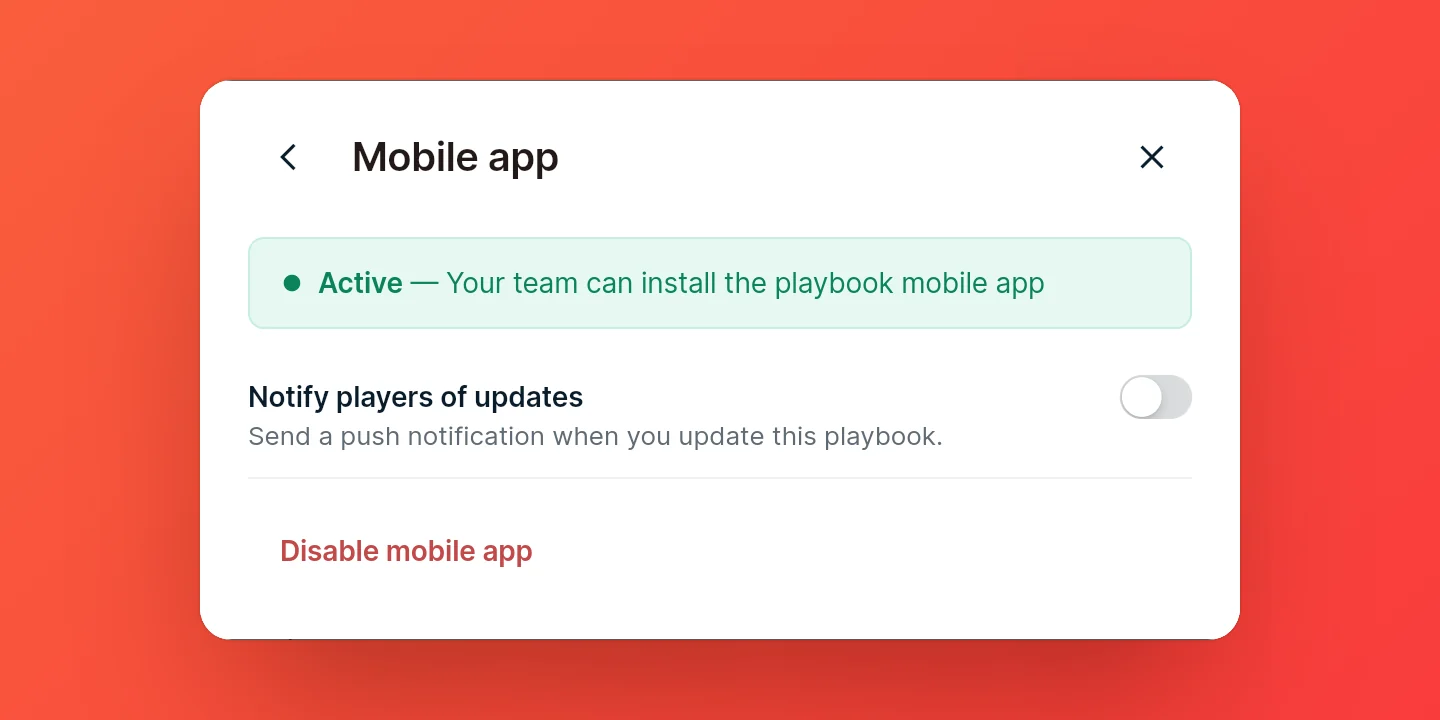
To change these settings later, open the share dialog and choose Configure mobile app. There you can switch notifications on or off, or disable the app. You need to be online to change them.
Set the app icon
The app uses the CoachCanvas logo until you change it. In the share dialog, choose Change app icon and tap the preview to upload an image such as your team logo. Set the background color and icon size, then save. The icon also shows in the browser tab. Reset to default brings back the CoachCanvas logo.
Tip: Set the icon before you send the link. A phone keeps the icon it was installed with: on iPhone, players have to remove the app and install it again to get a new one.
Install on iPhone
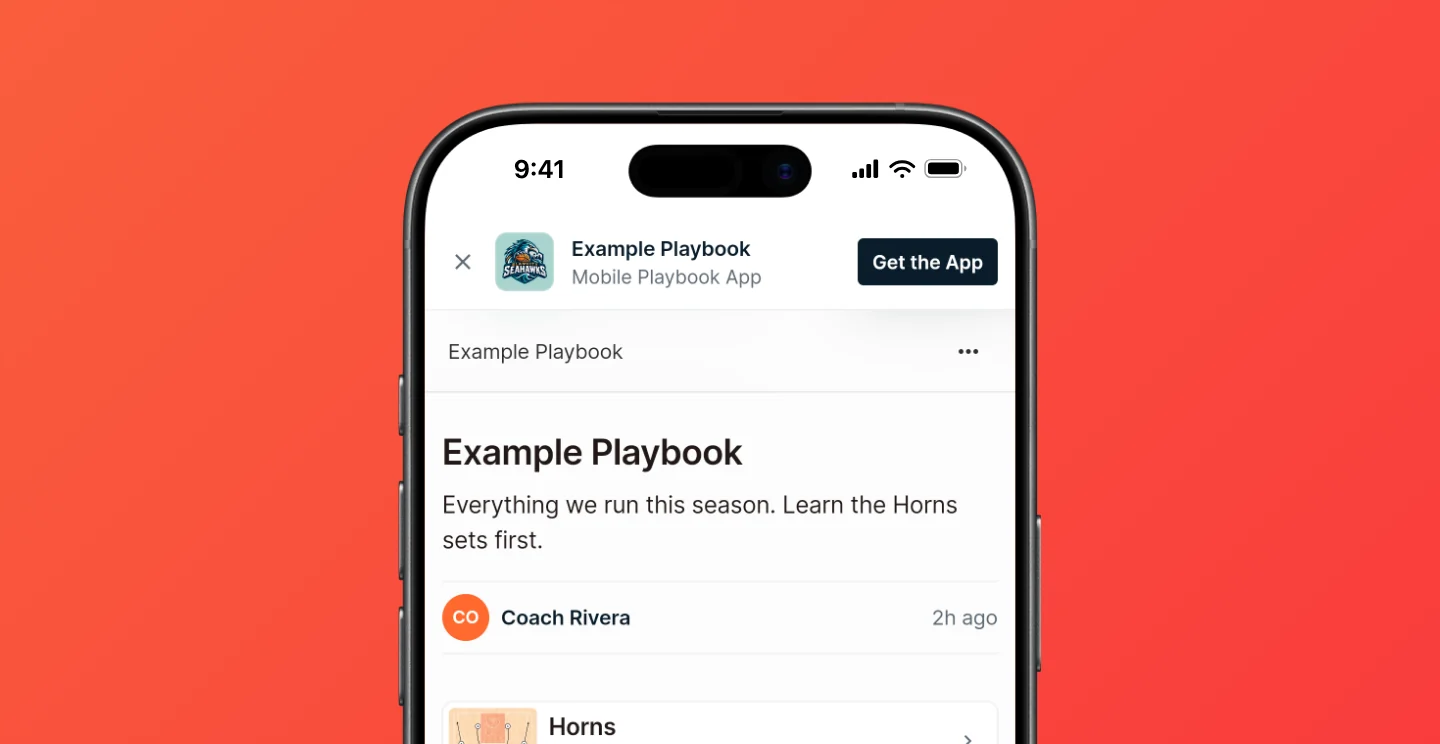
The player opens the link in the browser and taps Get the App, in the bar at the top or in the menu at the top right. The app then walks them through it:
- Tap Share in the browser's navigation bar. If there's no Share icon, tap More first.
- Scroll down to Add to Home Screen and tap it.
- Confirm, and the playbook appears on the home screen with your icon.
Install on Android
The player opens the link in Chrome, taps Get the App (in the bar at the top or the menu at the top right), then Install.
Install from a computer
The app is for phones, but a computer helps install it. The install prompt on a computer shows a QR code. Scanning it with a phone's camera opens the playbook there and starts the install.
FAQ
Why can't a player find Get the App?
Get the App only shows in the browser, when the app is turned on for that playbook. If no one on your team sees it, check that the share dialog offers Configure mobile app and that your Pro plan is active.
Can players install it on a computer?
No, the app is for phones. On a computer, players use the link in the browser.