Frames and animation
A frame is one step of a play. Frames run one after another as an animation, each starting where the last one ended.
The frame strip
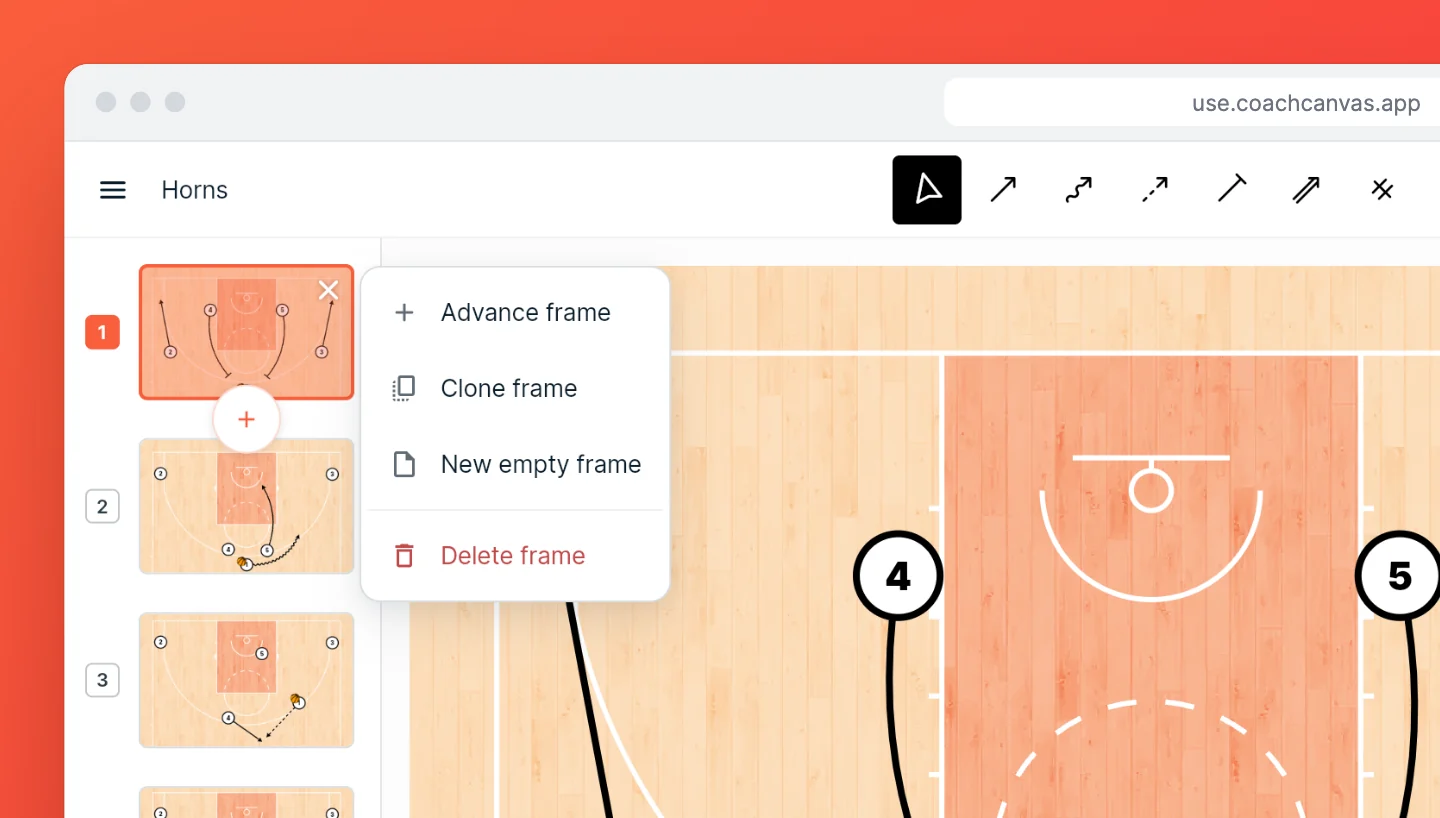
Each frame is one step of the play. A frame can hold several actions, but spreading a play over a few frames keeps each one easy to follow. The frame strip shows them in order.
Tap a frame to select and edit it. The current frame is outlined in orange.
Add a frame
Tap the + next to the current frame, or press Shift+N. The new frame goes right after the current one, and you land on it.
For a different starting point, tap the current frame again (or right-click any frame) to open its menu:
| Menu item | What the new frame starts with |
|---|---|
| Advance frame | Everyone where the last frame left them, the ball with whoever ended up holding it. Same as +. |
| Clone frame | Everyone where this frame starts, as if nothing had happened yet. |
| New empty frame | A bare court with just a ball. |
What's on the court carries over: players, the ball and cones. What happens in the frame doesn't, so each new frame starts with no actions or notes of its own.
Reorder frames
Drag a frame to a new place in the strip. On a phone or tablet, press and hold the frame until it dips, then drag; a quick swipe scrolls the strip instead.
Delete a frame
Open the frame's menu and choose Delete frame. A play always keeps at least one frame, so the last frame cannot be deleted. Undo brings a deleted frame back: the undo button, or Ctrl+Z (⌘Z on a Mac).
Write instructions for a frame
Each frame has its own instructions: what to read, where to go next, what to watch for. Select the frame, then open the Instructions panel with the clipboard button at the right edge of the editor, under the Timeline button. On a phone, tap Instructions in the bar at the bottom.
Instructions take bold, italic, underline, bullet lists and links. Typing - at the start of a line starts a list. Changes save automatically.
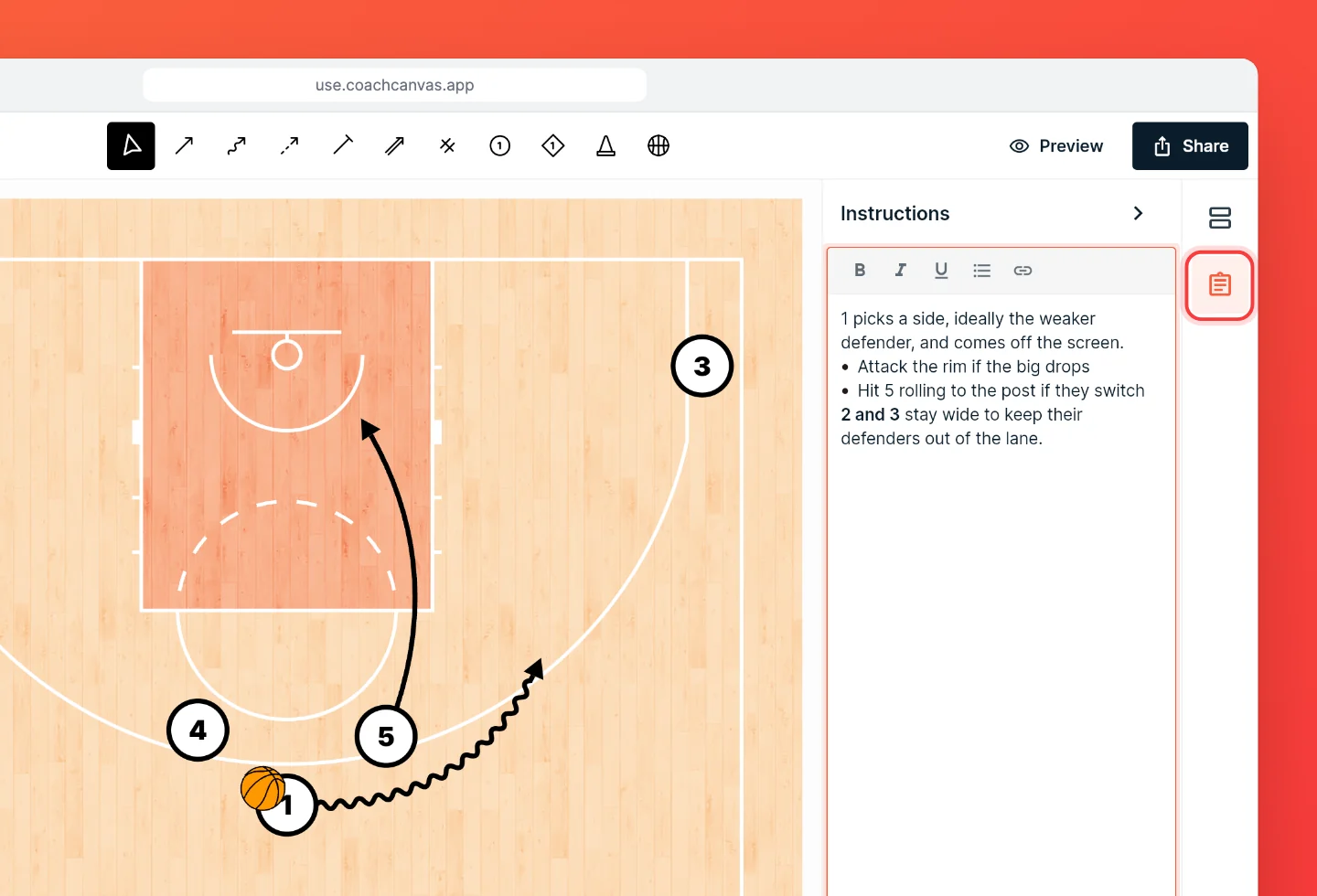
The instructions print beside or under their frame when you export a PDF or images with the Grid or Row layout. To describe the whole play rather than one frame, use the play's description. See Edit play details.
Order the actions in a frame
The Timeline panel lists the actions of the selected frame: one row per action. When the play runs, the rows run from top to bottom, one after another. Rows grouped under At the same time run together.
- Change the order: drag a row by its handle on the right.
- Run actions together: drop a row onto another row. Both move into an At the same time group. Drag the group by its own handle to move it as one.
- Run an action on its own again: drag it out of the group. A group needs at least two rows, so the last one left also runs on its own.
New actions go to the end of the list. When a different spot would let an action run that otherwise couldn't, CoachCanvas moves the new action there for you. A pass to a player who then dribbles, for example, goes before the dribble.
Note: If none of a frame's actions are attached to a player, CoachCanvas guesses who each action belongs to, and in what order they are executed. Choose Link all actions to reorder to attach the actions and edit the order manually.
When frames don't line up
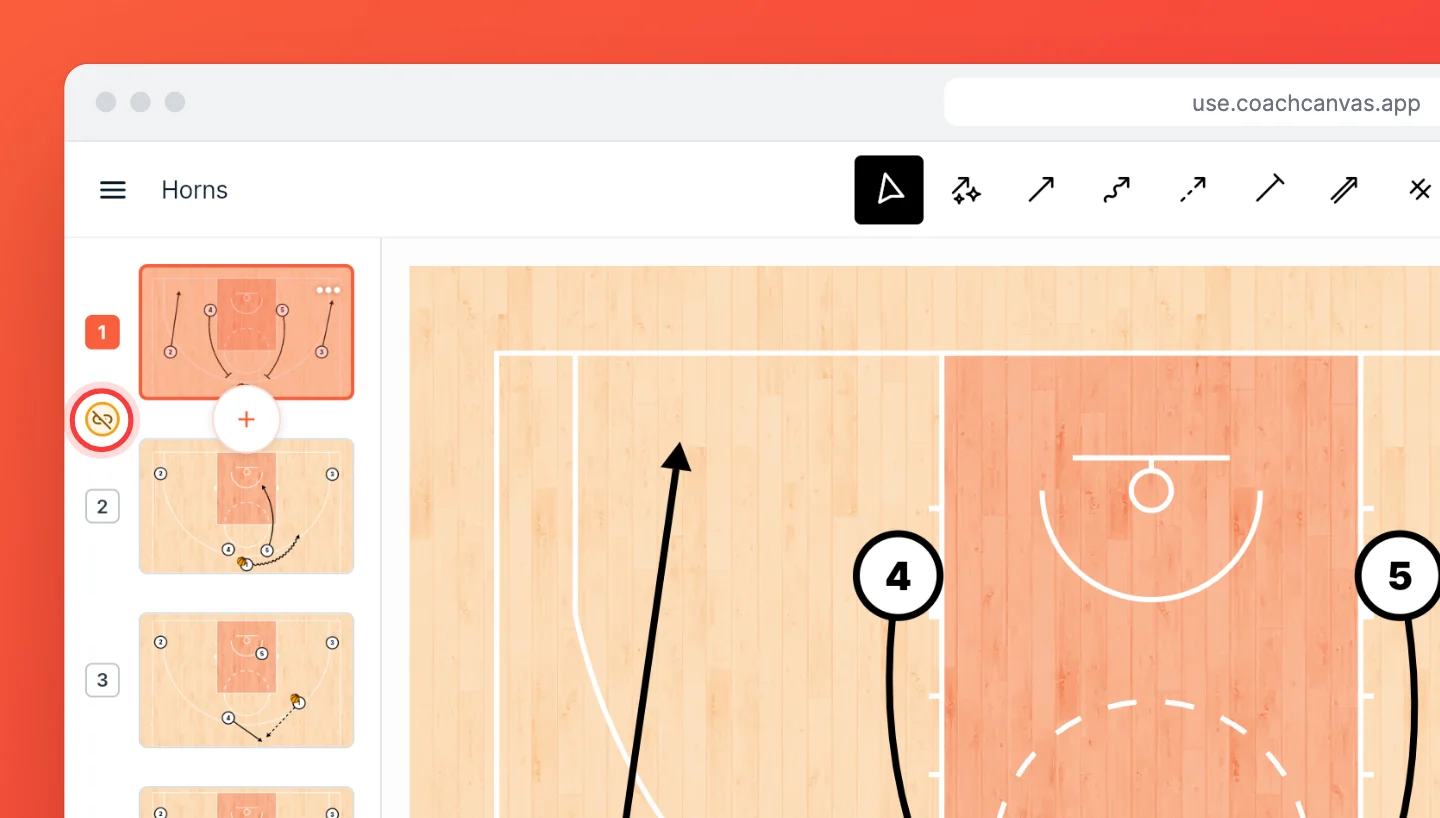
The animation runs smoothly when each frame starts where the one before it ended. Otherwise players jump from one spot to another between frames. This can happen when you go back and change an earlier frame. If you move where a cutter finishes, the next frame still starts them at the old spot.
When this happens, a broken-link mark appears between the two frame numbers.
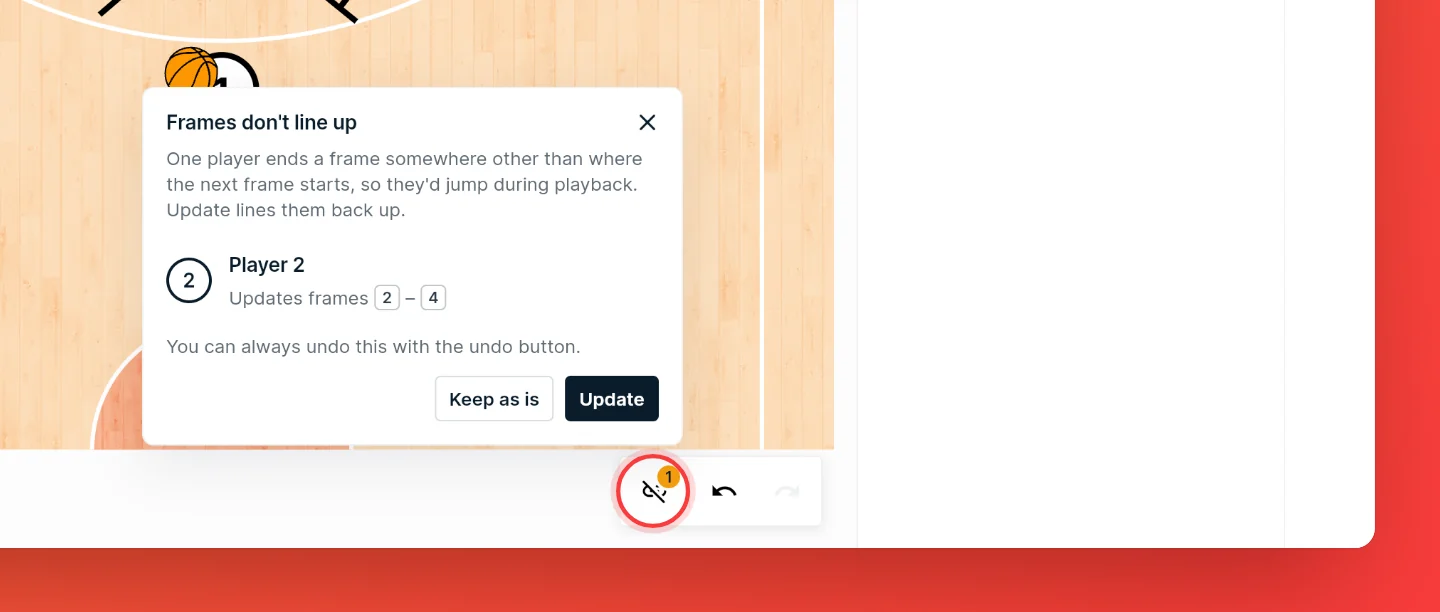
A button with an amber count also appears next to undo (on a phone, in the bar at the bottom). Tap it to see the players who would jump and the frames a fix would change.
- Update takes your latest change as what you meant. It leaves the frame you just changed as it is and moves those players in the frames next to it to match.
- Keep as is leaves the jump, if you want it there.
Kept a jump and changed your mind? Open the menu on either frame and choose Line up with previous frame… or Line up with next frame….
Play the animation
Open the Timeline panel and press its play button. The play fills the screen and runs from the first frame to the last.
- Pause and play, or skip to the previous or next frame.
- Tap or drag along the bar to jump to any moment.
- Change the speed between 0.5×, 1× and 2×.
- Frame by frame stops at the start of every frame, so each press of play runs one step. Use it to walk players through the play.
On a phone, the speed and frame-by-frame settings sit behind the Options button.
Tip: If a player teleports in the animation between frames, look for the broken-link mark in the frame strip. That's where they jump.
When an action is skipped
The animation follows basketball rules. An action that can't happen at the point it runs is skipped: it stays on the court, but nothing moves when the play runs. A ! mark appears on the action and on its row in the Timeline. Hover over the mark, or tap it, to see why.
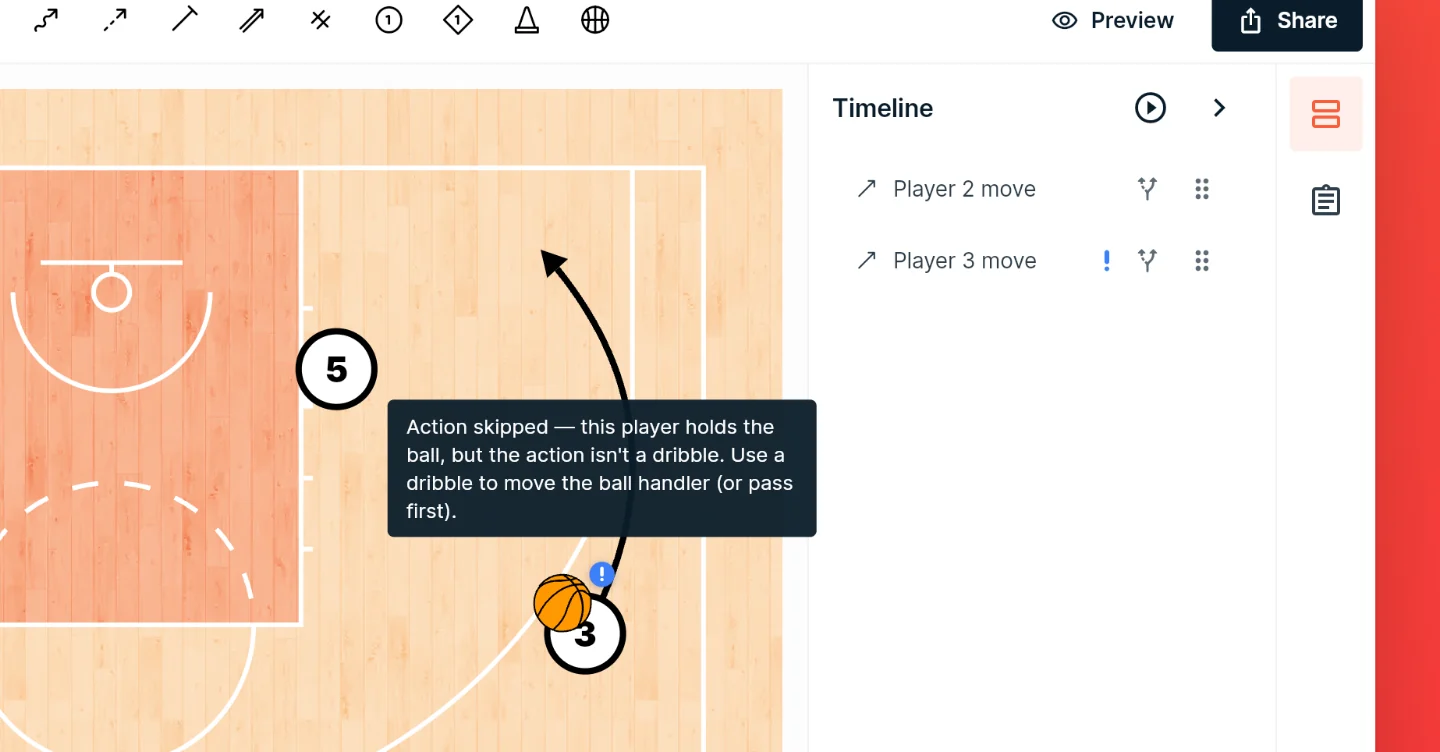
Often the fix is the order in the Timeline. A pass that fires before the cutter arrives is skipped, so move the pass below the cut, not into the same group. A pass is also skipped when the receiver has already left the spot, so move it above their cut.
A different mark, a forked arrow, means an option: the player already does something else from that spot, so the action shows as a choice and doesn't run. To mark an action as an option yourself, use the forked-arrow button on its row in the Timeline.