Organize plays with labels
Labels are short tags on a play, such as "BLOB" or "U14", that let you filter your library down to the plays you need.
Overview
A label is a word or two you attach to a play. Use labels for whatever you sort plays by: the situation (BLOB, SLOB, Press break), the age group (U14) or the team (Varsity). A play can have as many labels as you like. Only plays have labels; playbooks don't.
Add labels to a play
When you create a play, the second step is adding labels. To label a play you already have, open Edit details… from the play menu () in the editor, or select the play on the dashboard and choose Edit details. Then choose Add Labels, or Edit Labels if the play already has some.
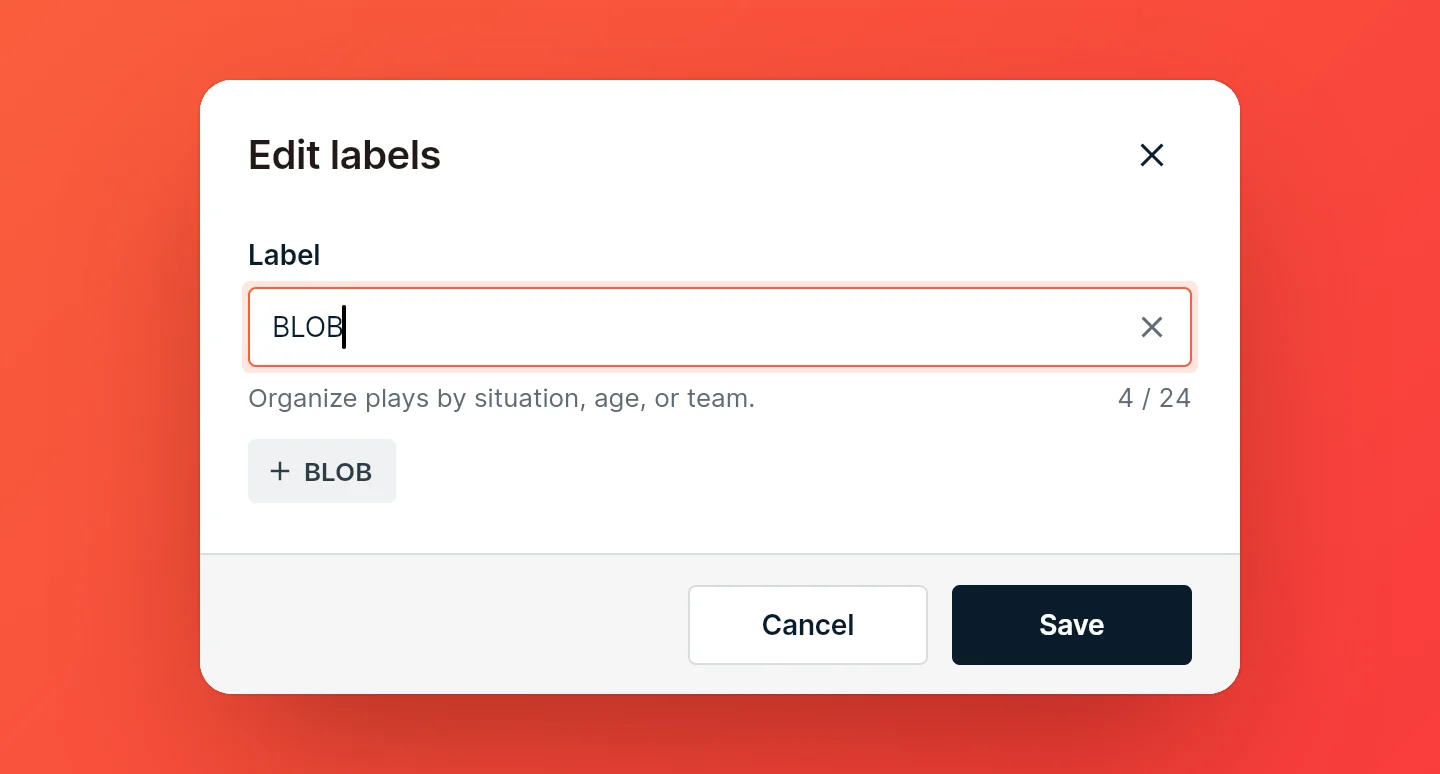
Type a label and tap the chip with the + to create it. Labels you've used on other plays show below the field: tap one to add it, and tap it again to remove it. Typing searches them too. A label can be up to 24 characters.
Filter the dashboard
The dashboard shows a row of label chips above your plays. Tap a label to show only the plays that have it. Tap more labels to narrow it further: you'll see the plays that have all of them. All Labels clears the filter.
The dashboard search finds labels too. Pick a label there and it's selected in the row of chips, just as if you'd tapped it. Adding plays to a playbook has the same filter (see Build a playbook).
Remove a label
Open the play's labels and tap the label to deselect it, then save. Once you've removed a label from every play, it's deleted.
Note: You can't rename or edit a label yet: to change one, remove it from its plays and add a new one. We're aware this isn't optimal and are currently redesigning how you organize your plays.
Labels from other places
- Imports. The FastDraw and Hoops Geek imports can turn seasons, teams, series, playbook titles and chapters into labels.
- Copies. Plays you copy from another coach arrive without labels, so you can sort them your way.