Edit play details
Change a play's name, description, court or labels, and rename its players, after you've created it.
Open the play details
In the editor, open the play menu (, top left) and choose Edit details…. On the dashboard, select one play and choose Edit details.
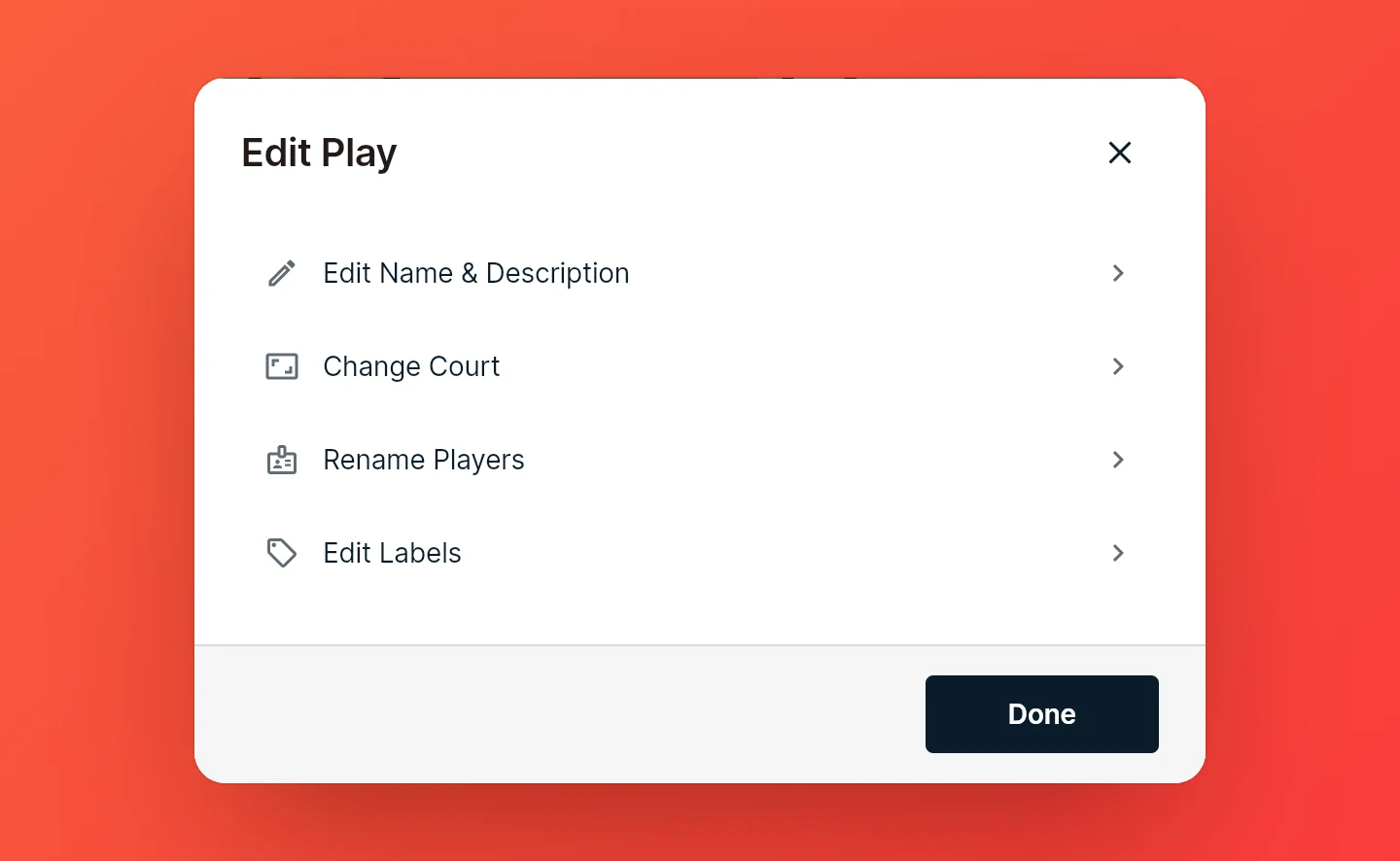
The menu has four pages: name and description, court, players and labels. Each saves on its own, so you can save one, open the next, and choose Done at the end.
Change the name and description
Edit Name & Description has the play's name and its description, where the reads, counters and coaching points go.
Change the court or league
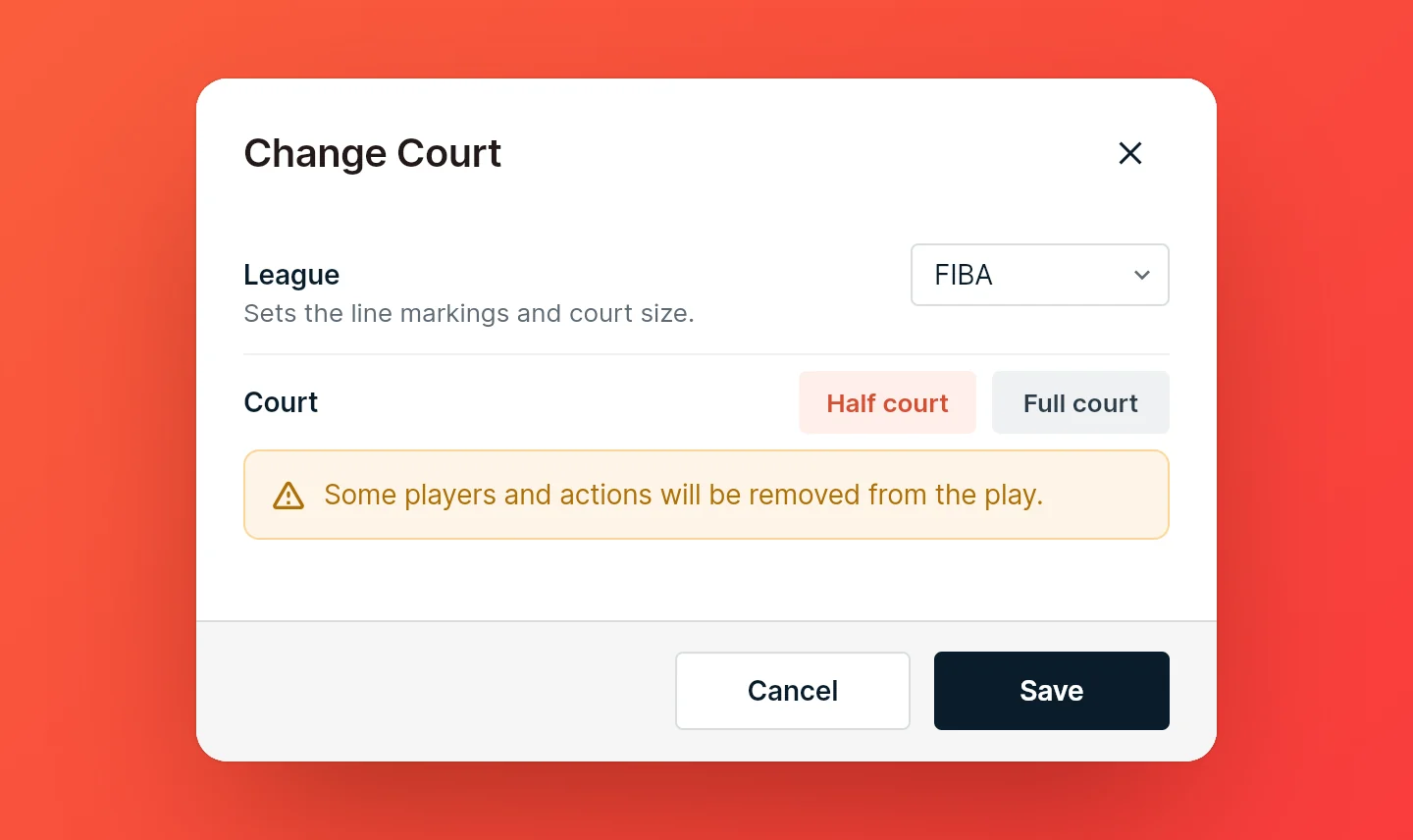
Change Court has the same choices as when you created the play: the league (FIBA, NBA, WNBA, NCAA or High School) and a half or full court.
When you switch leagues, players keep their spots relative to the lines in every frame. A player in the paint stays in the paint, and a shooter in the corner stays behind the three-point line.
Going from a half court to a full court removes nothing. Going the other way removes everything in the back court from every frame: players, actions, the ball and cones. An action that crosses half court is removed as a whole. A warning shows under the choices when this applies, and CoachCanvas asks you to confirm when you save.
Note: In the editor, undo brings the back court back, until you leave the editor. On the dashboard, removing it can't be undone.
Rename players
Rename Players lists every player once, grouped into offense and defense. Type a new name next to anyone you want to rename. Names are up to five characters and show in capitals. To rename a whole team at once, use Fill with and pick positions (PG, SG, SF, PF, C) or numbers (1, 2, 3…).
A rename applies to every frame. To rename a player in the current frame only, select them on the court and choose Rename player in their toolbar.
Add labels
Add Labels (Edit Labels once the play has some) tags the play so you can filter your library by it. See Organize plays with labels.