Share a link
A shared link turns a playbook or a play into a private web page your team opens on any device, without an account.
Share a playbook
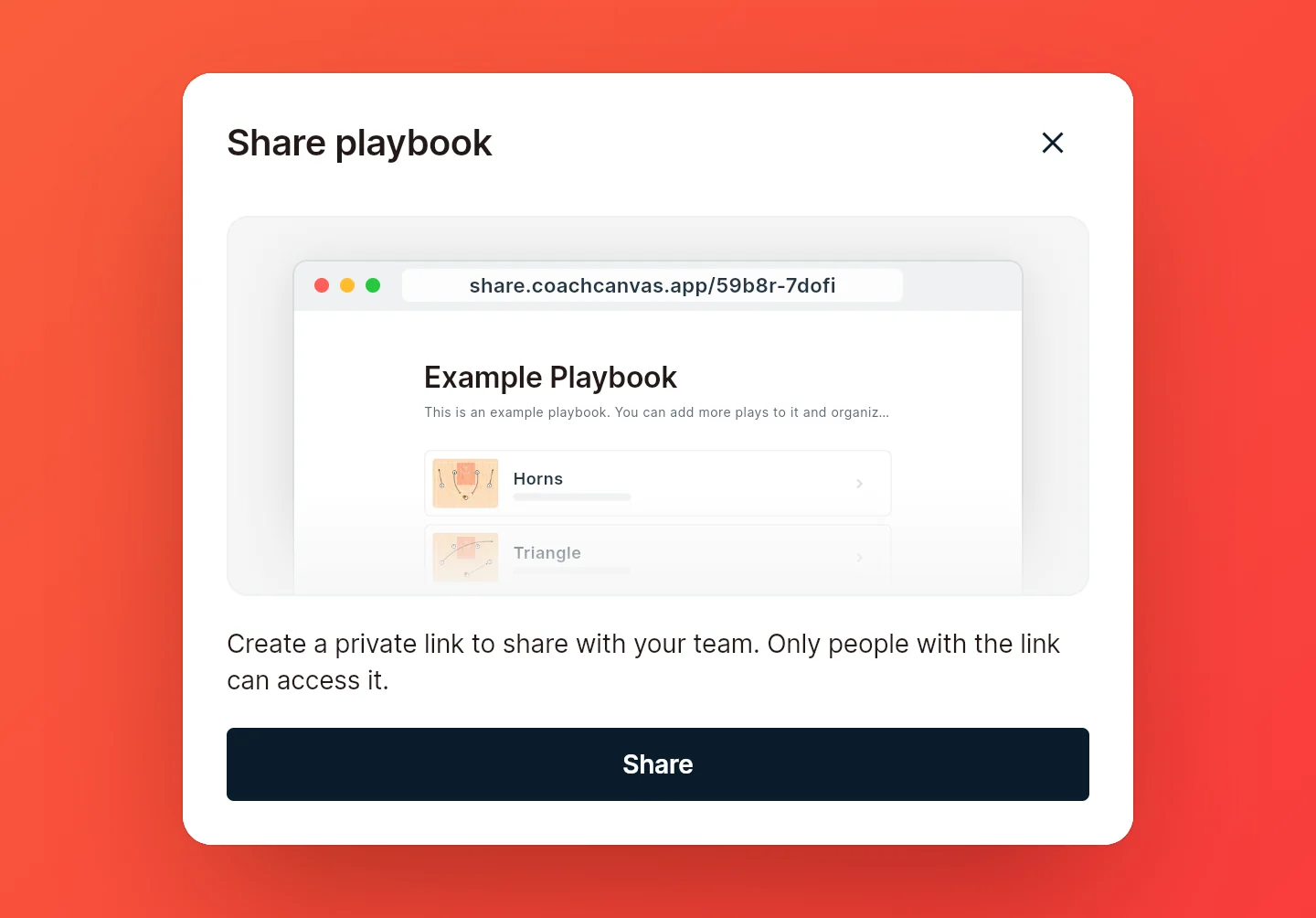
Open the playbook and choose Share in the top bar, then choose Share again in the dialog to create the link. The link opens the whole playbook, with all its plays and sections.
Share a single play
Open the play in the editor or its preview (not within a playbook) and choose Share in the top bar. It works like sharing a playbook.
Note: Inside a playbook, Share always shares the playbook, so open the play from the dashboard instead.
Send the link
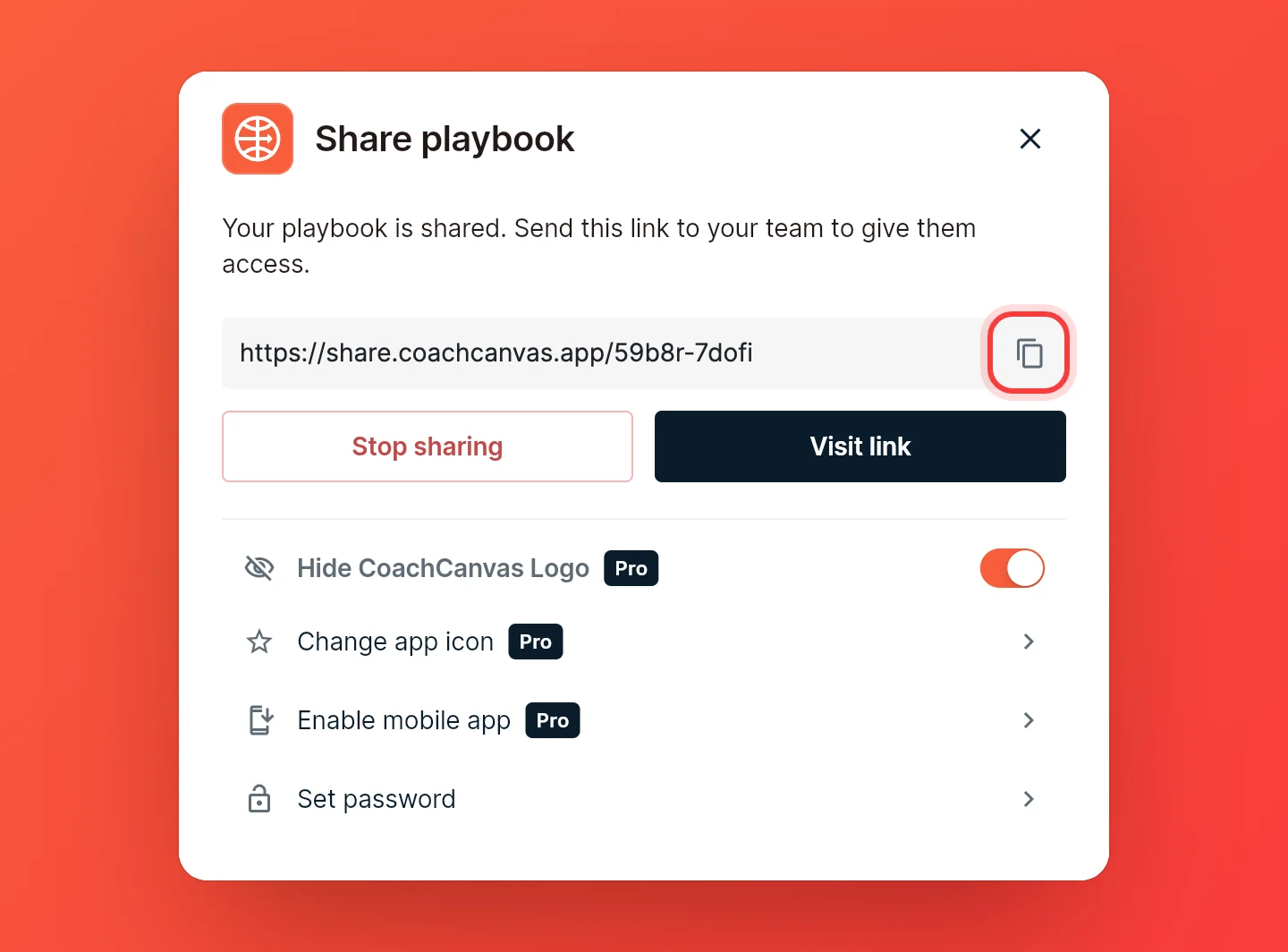
Choose Copy link and paste it wherever your team talks: a group chat, an email, a text. Visit link opens the page as your players see it.
The Share button now reads Shared. Open it again any time to get the link back.
Who can open it
Anyone with the link can open it in a browser, on a phone or a computer, without an account or an install. They can flip through the plays, watch them animate and save a PDF. Anyone with a CoachCanvas account can also copy it into their own library.
Sharing is free, but needs a CoachCanvas account. If you've been drawing without one, CoachCanvas asks you to create it first.
Add a password
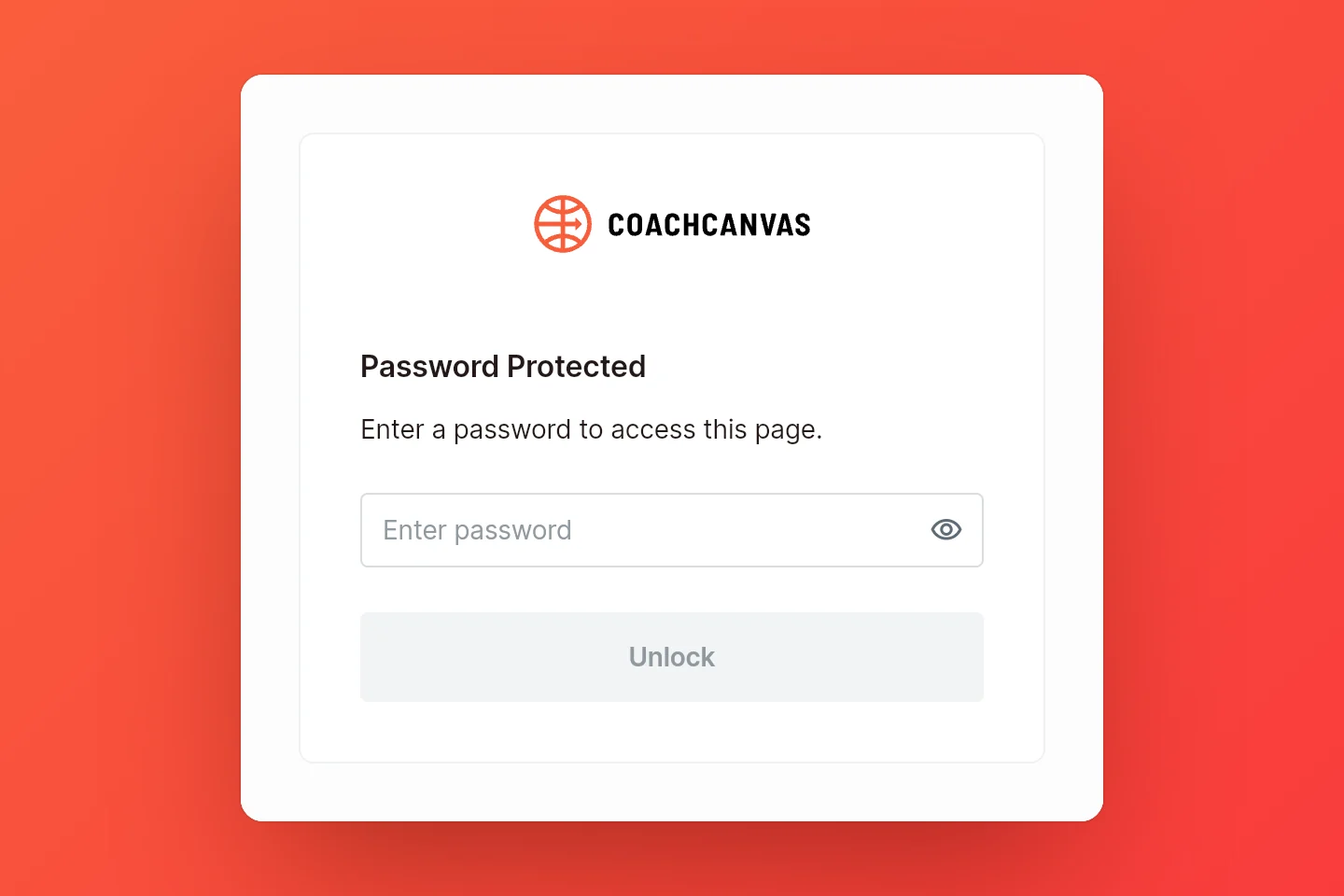
In the share dialog, choose Set password, type it and save. A password needs at least 4 characters: letters, numbers and ! @ # $ & * ~ . , ? _ -.
Anyone who opens the link then has to enter it. Their device remembers it, so players only type it once.
To change it, choose Change password. To remove it, clear the field and save.
Extra options on Pro
With Pro, switch on Hide CoachCanvas Logo to drop the "Made with CoachCanvas" badge from the page. New links shared on Pro start with it hidden. A shared playbook can also become an app your players install.
Stop sharing
In the share dialog, choose Stop sharing. Anyone who opens the link then gets a page saying it can't be found, though a device that opened it before may still show the version it last loaded.
Sharing again brings back the same link, with the same password and settings.
Note: Deleting a shared play or playbook also stops its link, and can't be undone. To only take the page down, stop sharing instead.
You need to be online to share, change the password or stop sharing. The dialog tells you when you're offline.