Draw your first play
Create a play, set up the court and draw the action one frame at a time, the way you would on a whiteboard.
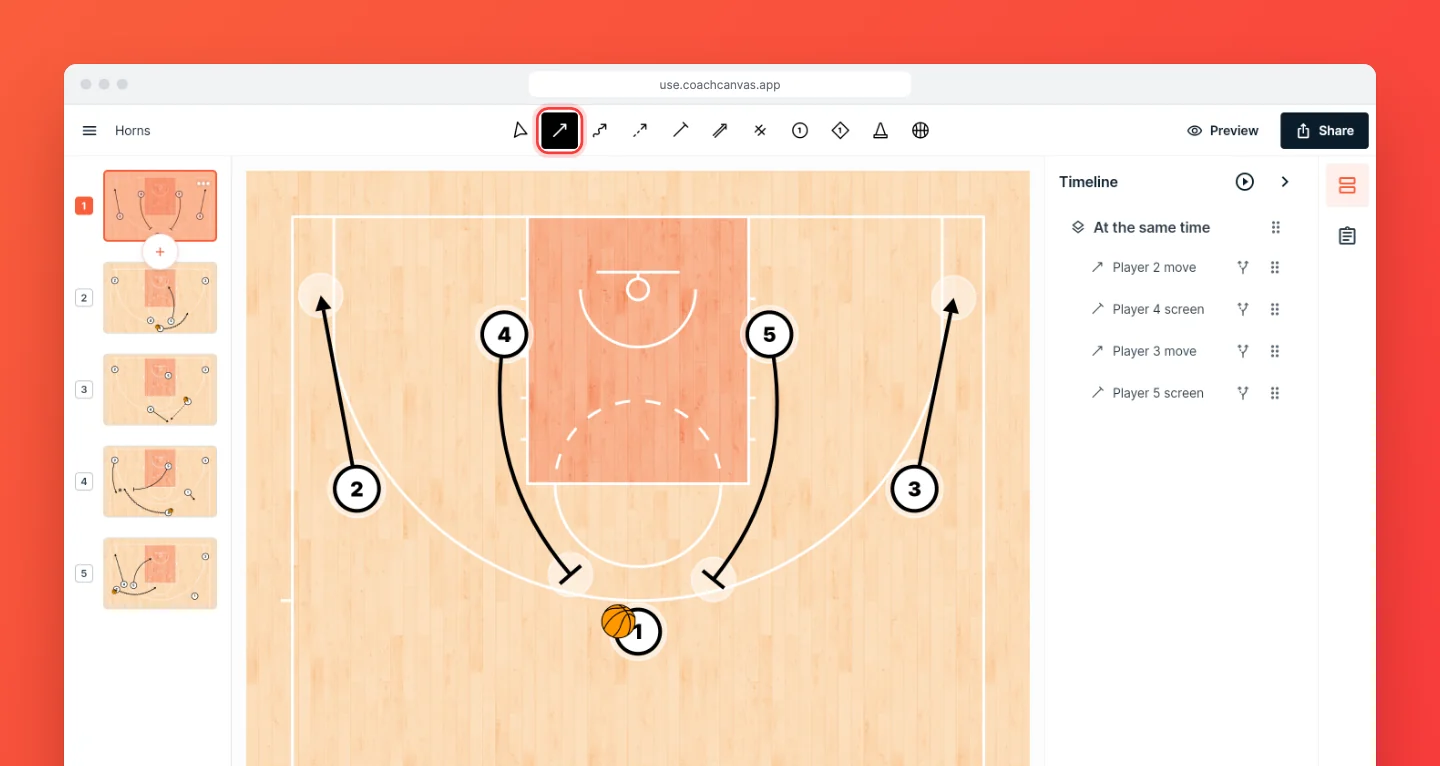
Create the play
On the dashboard, choose Create new, then New play. Setting it up takes three steps:
- Name your play. The description is optional. It's where the reads and coaching points go.
- Add labels. Labels sort your library by situation, age group or team, such as "BLOB" or "U14". Type one and tap it, or continue to skip. See Organize plays with labels.
- Set up the court. The league sets the line markings and court size. Choose a half court or a full court. Offense starts you with five players in a 1-2-2, and Defense adds five defenders in man-to-man. Players show as numbers or positions.
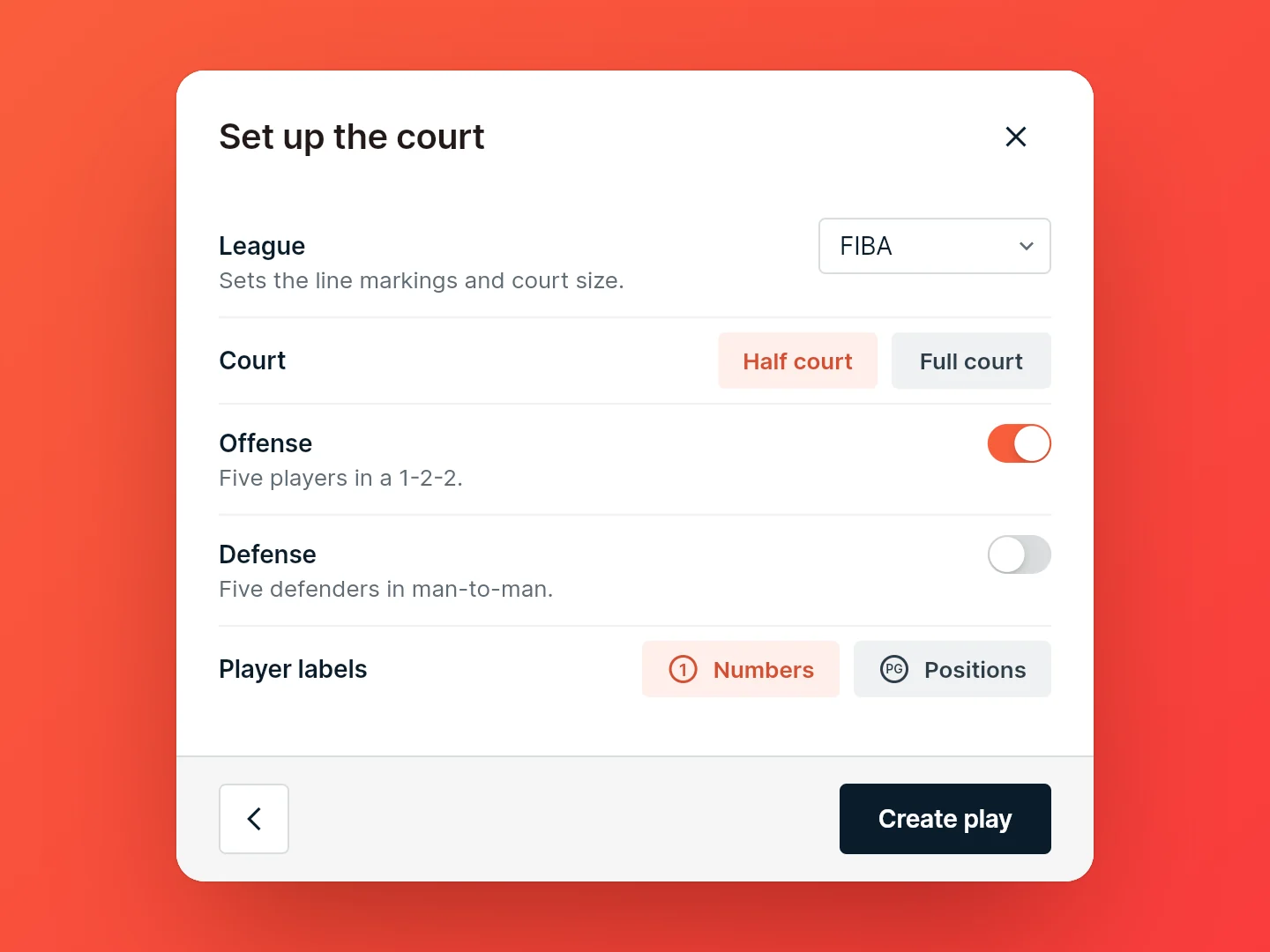
Choose Create play and the editor opens. You can change all of these later. See Edit play details.
Draw the action
Move players by dragging them with the Select tool. To add one, pick the Offense or Defense tool and tap the court.
To draw an action, pick its tool and drag from a player. The action snaps to the player it starts on and to the player it ends on.
| Tool | Use it for | Looks like |
|---|---|---|
| Move | A player moving without the ball | |
| Dribble | The ball handler moving with the ball | |
| Pass | The ball going from one player to another | |
| Screen | A player setting a pick |
To undo, use the undo button or Ctrl+Z (⌘Z on a Mac). The drawing tools covers the rest of the toolbar (Shoot, Handoff, cones and the ball) and every tool's keyboard shortcut.
On iPhone and iPad, you can also draw with gestures: one tool, the Magic Pen, draws all of these from the shape of your stroke.
Add the next frame
A frame is one step of the play. Each new frame starts where the last one ended. Add a frame with the + in the frame strip or Shift+N, then draw the next step. To watch the play run, open the Timeline panel and press play.
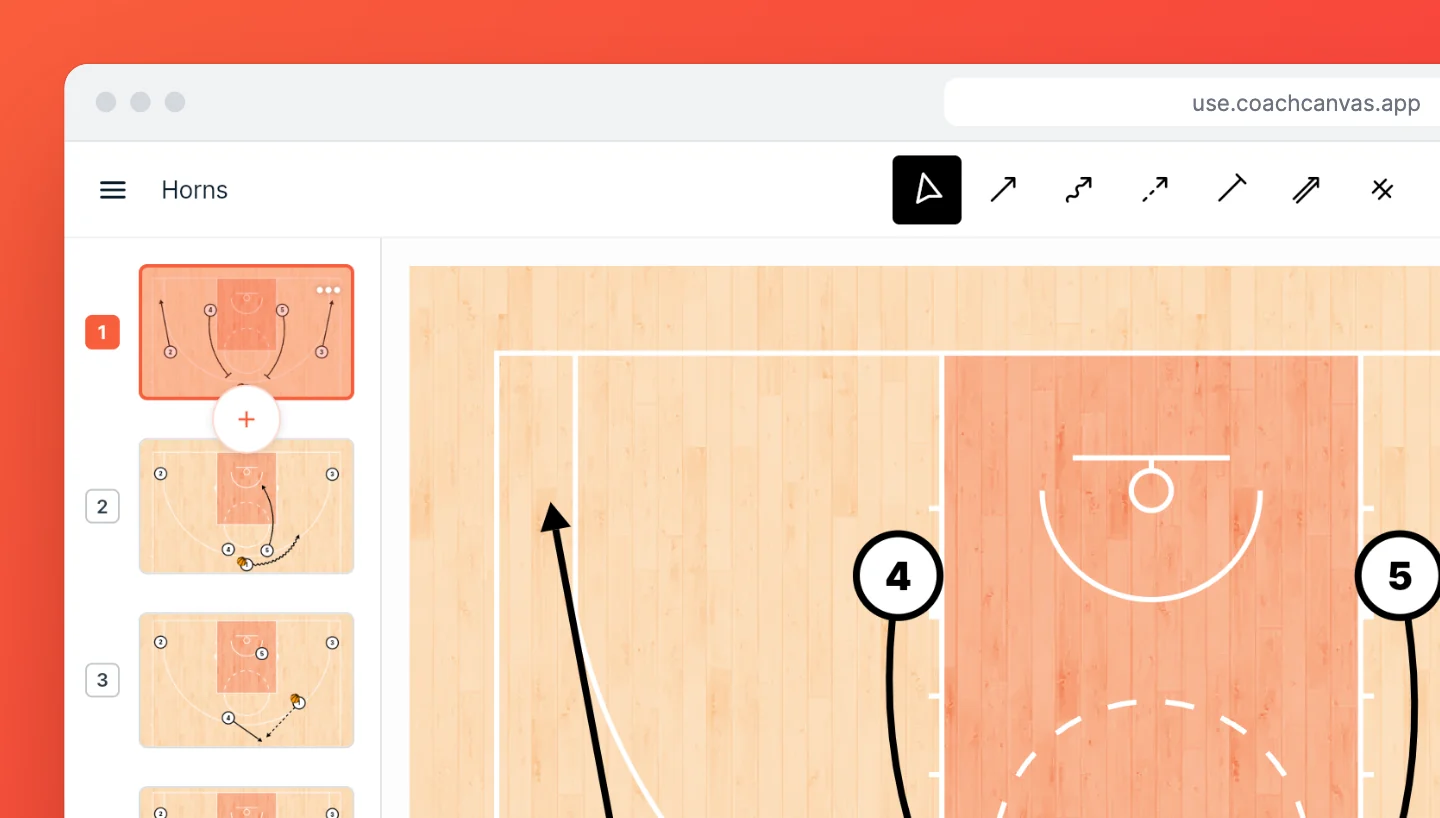
Frames and animation covers reordering frames, fixing frames that don't line up, and playback.