Import from FastDraw
Import your FastDraw plays from the .fdb files FastDraw exports, with your seasons, teams and series as labels.
Export your plays from FastDraw
CoachCanvas reads the .fdb files the FastDraw desktop app exports. Export the plays you want from FastDraw on your computer, in one file or several: CoachCanvas combines them into one import. It doesn't need your FastDraw login.
Importing on an iPhone or iPad? Save the .fdb files to the Files app first, for example through iCloud Drive or AirDrop.
Start the import
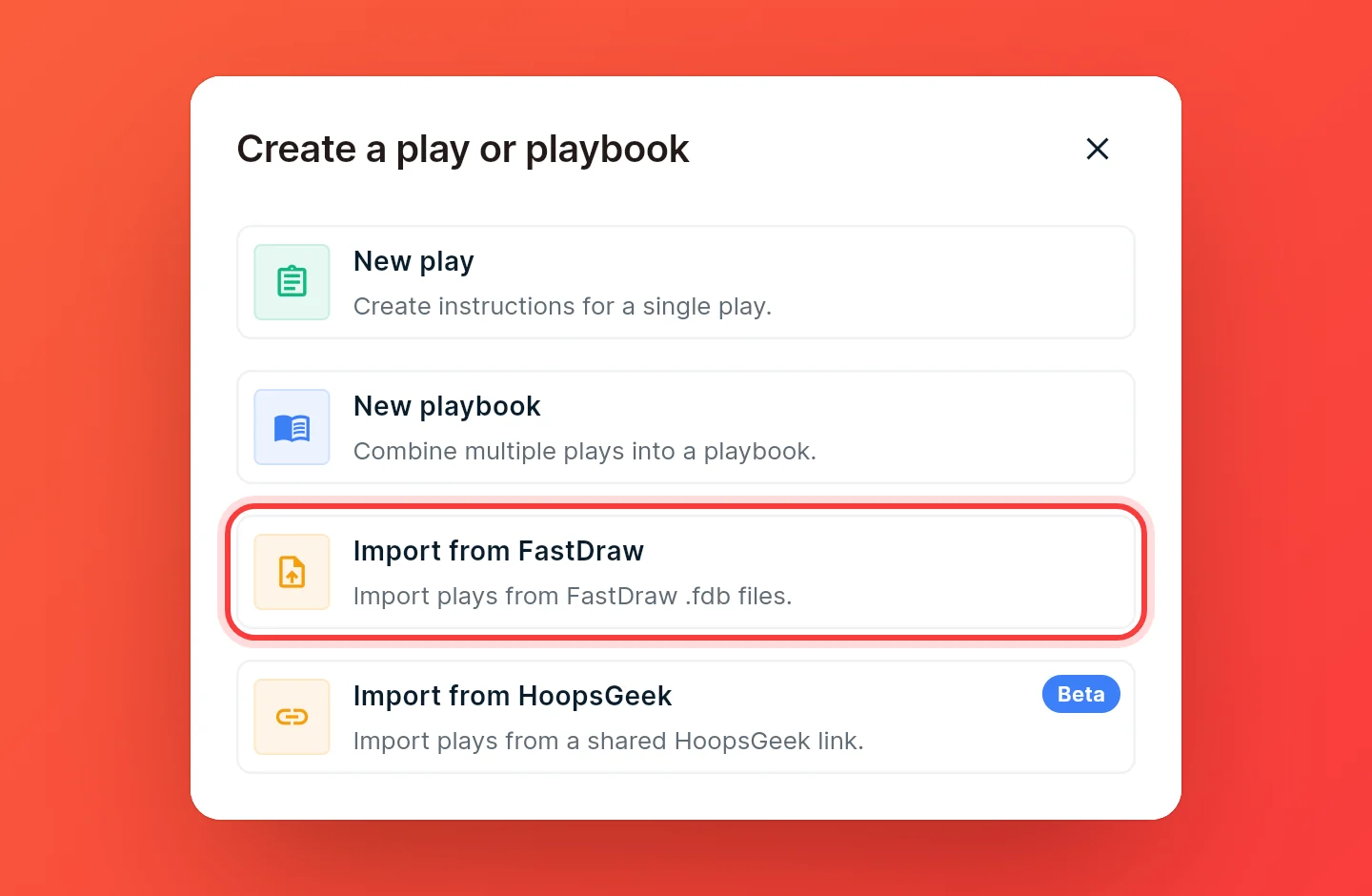
On the dashboard, choose Create new, then Import from FastDraw. On a narrow screen, Create new is the + button in the bottom-right corner.
Add your files
Choose Choose .fdb files and pick your files. In a browser on a computer, you can also drag and drop them onto the box.
Each file shows up in a list while CoachCanvas reads it. To take one out again, press the × next to it. When every file is read, continue.
Pick your plays
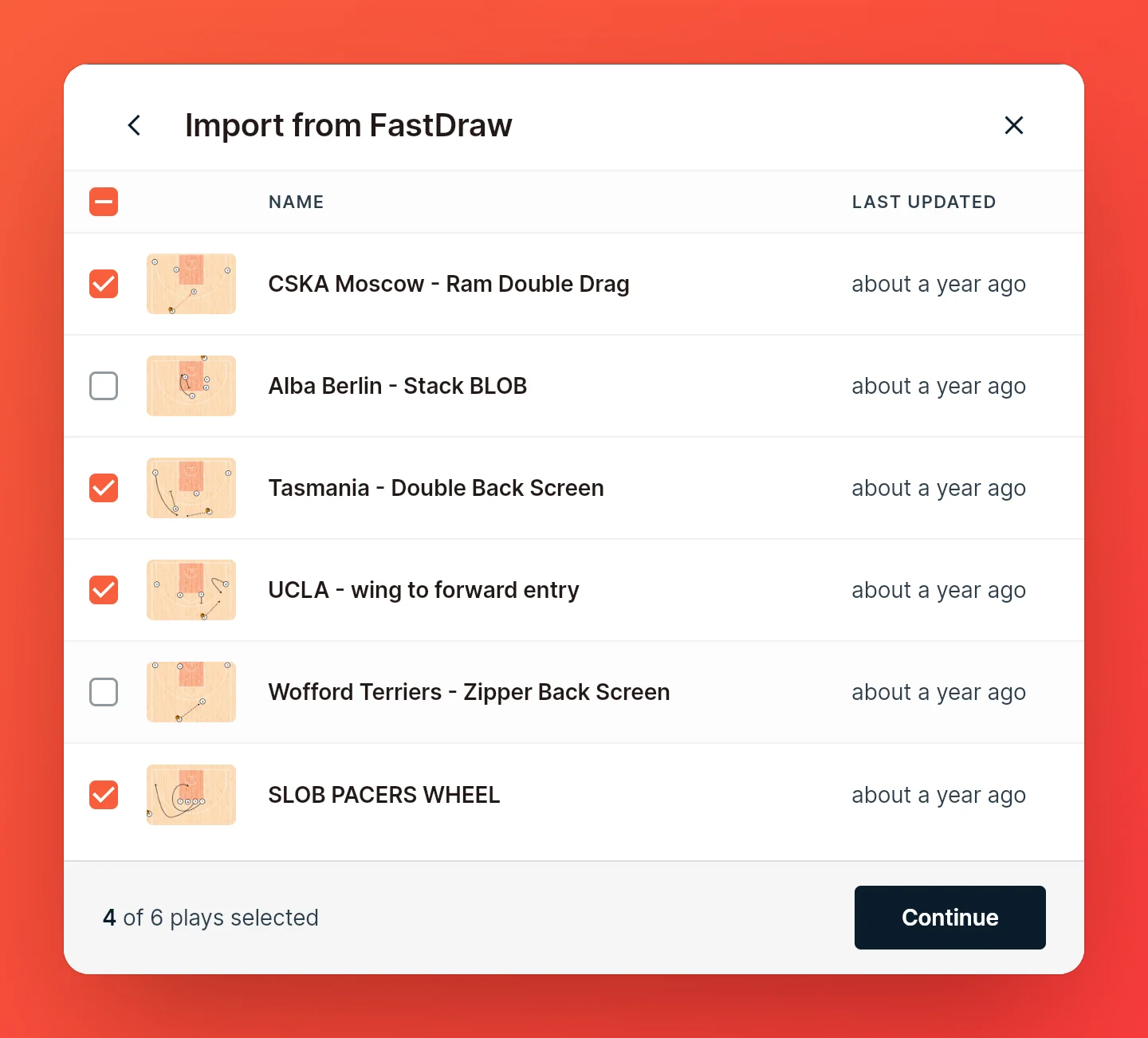
You now see every play from your files, with a preview of its first frame and when it was last updated. All of them are selected. Untick the ones you don't want, or use the checkbox above the list (Select all on a phone) to tick or untick everything at once. Then continue.
Organize your imports with labels
The last step offers four switches, all on to start with:
- Add 'FastDraw' label puts a FastDraw label on every imported play, so you can find them together.
- Import seasons as labels adds the play's FastDraw season, such as "Season 24-25".
- Import teams as labels adds the play's FastDraw team.
- Import series as labels adds the play's FastDraw series.
See Organize plays with labels. Turn off the ones you don't want, then choose Import.
Note: A large library takes a moment. Keep the dialog open until it says "Import complete". If you close it halfway, nothing is imported.
What comes over
| From FastDraw | In CoachCanvas |
|---|---|
| Frames | Frames, in the same order. Empty frames at the end are left out. |
| Players | Offense and defense players, with their numbers or positions |
| Cuts, dribbles, passes, screens | Move, Dribble, Pass and Screen actions, straight or curved |
| Handoffs and the ball | Handoffs, and the ball with the player who has it |
| Colors | Matched to the most similar color CoachCanvas offers |
| Court | Half or full court, and the league: NBA, WNBA, FIBA, NCAA or high school |
| Play notes | The play's description, as plain text |
| Frame notes | Each frame's instructions, as plain text |
Free text, shapes, shading, cones and other markers on the court don't come over. Neither do your FastDraw playbooks: you get the plays, not the playbooks. Turn on the series or team labels to keep them easy to find, then build a playbook from them.
Your plays will look close to how they did in FastDraw, but not identical. Open a few after the import and check the frames.
Free plan and play limit
Importing is free, but imported plays count toward the free plan's 30 plays. Pro has no limit.
If you select more plays than you have left, the footer tells you how many plays to remove. Untick that many, or choose Upgrade to Import. If you've already used all 30, CoachCanvas asks you to upgrade as soon as you start the import.
FAQ
Can I import again later?
Yes, as often as you like. CoachCanvas doesn't check for plays you imported before, so importing the same play twice gives you two copies. When you import a newer export, untick the plays you already have.