Export images
Save a play as an image, or each of its frames as its own image, for slides, scouting reports and group chats.
Open the export dialog
From the editor, open the play menu (, top left) and choose Export as.... Inside a playbook, open the play and choose Export at the top. On the dashboard, select the play and choose Export in the toolbar.
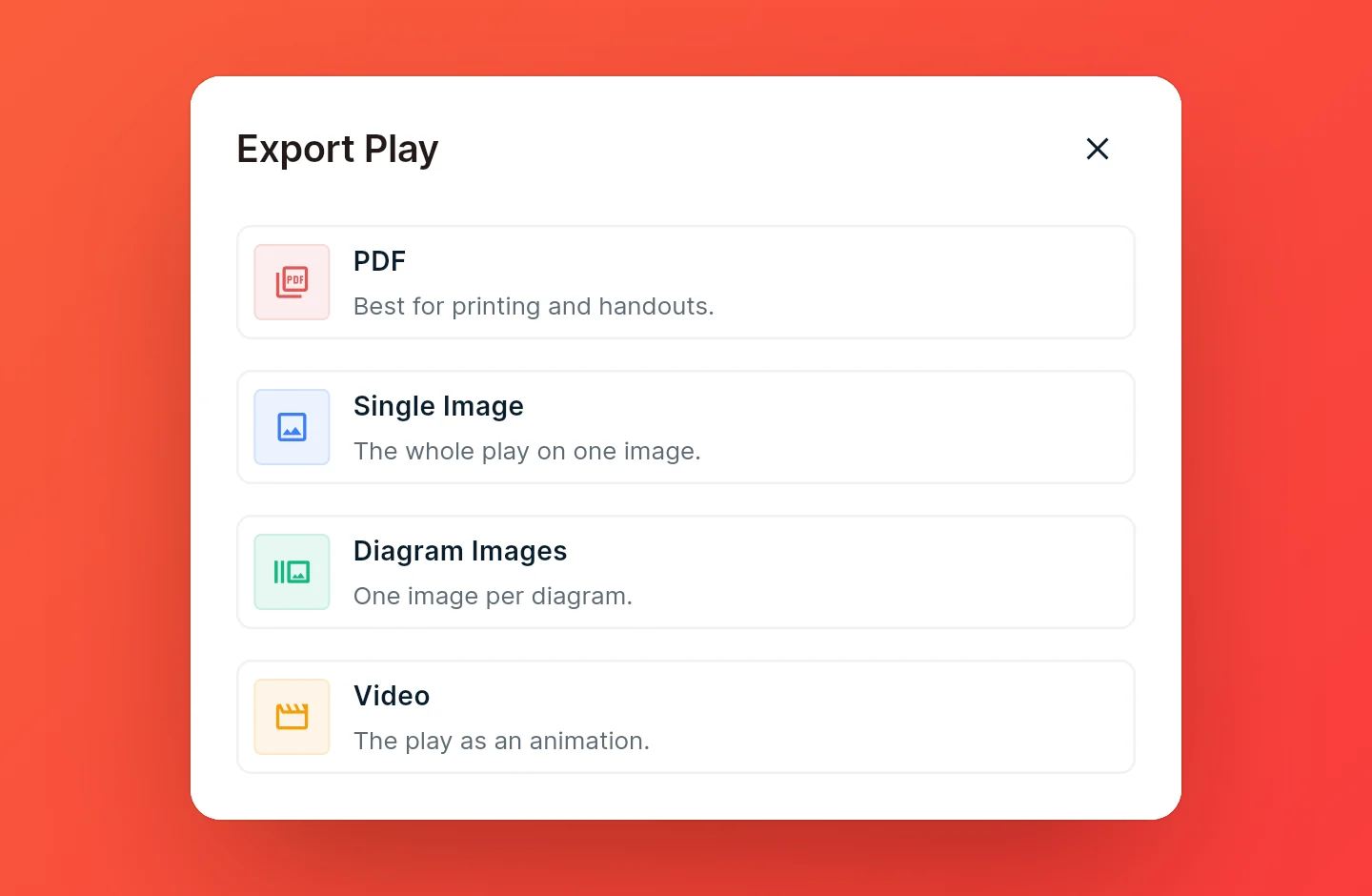
Then pick one of the two image formats:
- Single Image puts the whole play on one image: every frame, with its instructions.
- Diagram Images saves each frame as its own image, ready to drop into a slide or a message one step at a time.
The dialog shows a live preview next to the settings. On a phone, switch between the settings and preview tabs.
Single Image options
| Option | What it does |
|---|---|
| Content Layout | Grid puts the frames side by side with their instructions below. Row puts one frame per row with its instructions beside it. Images only leaves the instructions out. |
| Title and Description | Shows the play's name and description at the top of the image. |
| Padding | Adds space around the edges of the image. |
| Hide CoachCanvas Logo | Leaves the CoachCanvas logo off the image. Pro only. |
Diagram Images options
| Option | What it does |
|---|---|
| Image Size | The width of each image in pixels: 720, 1080 or 1920. |
| Diagram numbers | Shows each frame's number in its top left corner, so the order survives once the images are in a slide deck. On by default. |
| Printer-friendly | Black and white, so it uses less ink when printed. |
| Hide CoachCanvas Logo | Leaves the CoachCanvas logo off the images. Pro only. |
Where the images go
In the web app, a single image downloads as a PNG. Diagram images download together in a ZIP file. In the iPhone and iPad app, the button says Save to Photos, and the images land in the Photos app.
Export several plays at once
On the dashboard, select the plays you want and choose Export, then an image format. Single Image gives you one image per play; Diagram Images gives you every frame of every play. In the web app they download together in a ZIP file.
A playbook exports as a PDF only. To get images of its plays, select them on the dashboard instead. See Print and export a PDF.