Print and export a PDF
Export a play or a whole playbook as a PDF to print, hand out or send to your staff.
Export a whole playbook
Open the playbook and choose Export at the top (on a phone, the download icon). Or select the playbook on the dashboard and choose Export in the toolbar. Pick your options, then download.
The PDF holds the whole playbook, in the order you set:
- a cover with the playbook's title
- a foreword page with the title, your description, your name, the date, and a table of contents with page numbers
- every play, grouped by section, with the section name at the top of its pages
To change what goes in or the order, edit the playbook first. See Build a playbook.
Export a single play
From the editor, open the play menu (, top left) and choose Export as.... Inside a playbook, open the play and choose Export at the top. On the dashboard, select the play and choose Export in the toolbar.
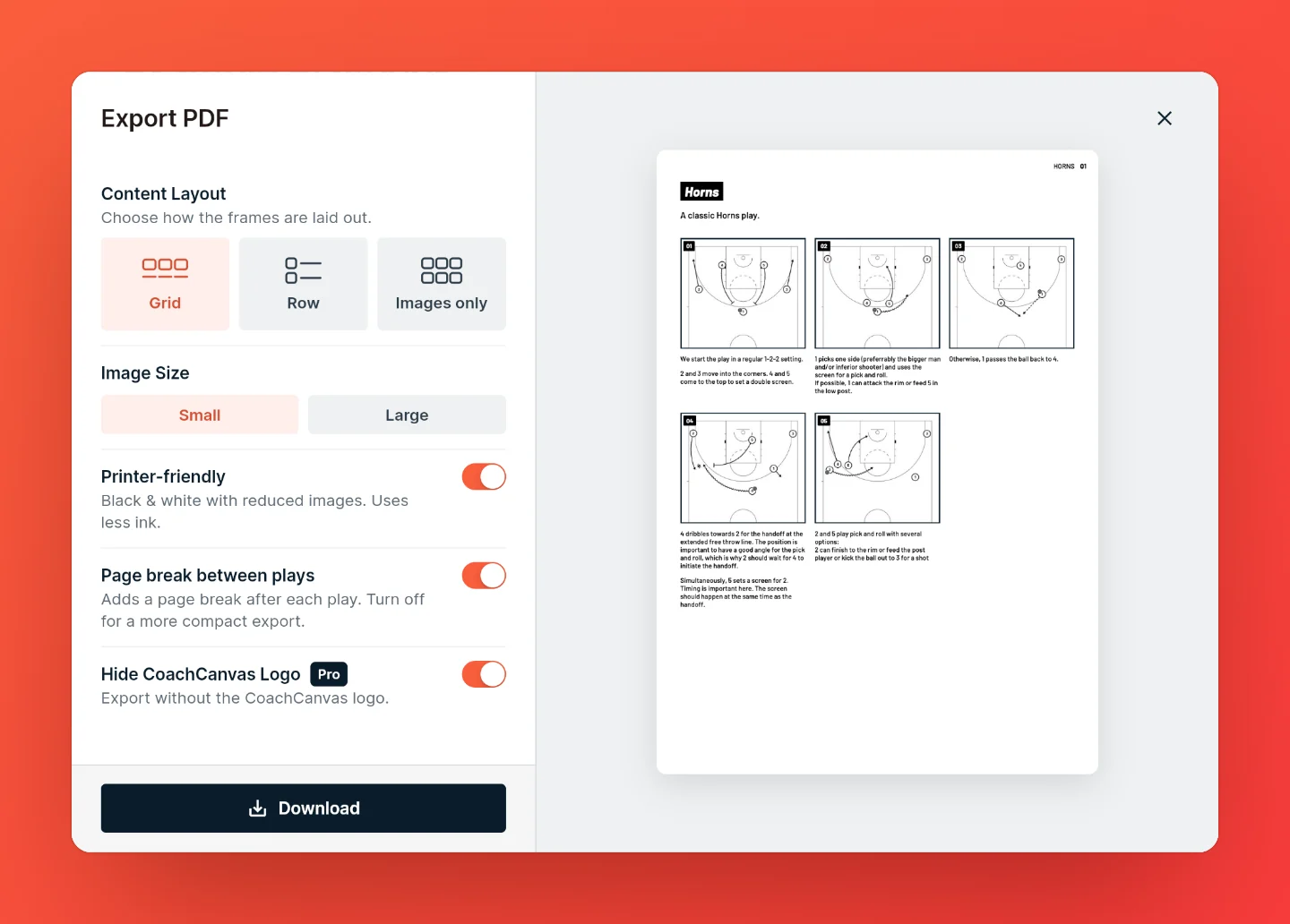
Choose PDF as the format, set your options, then download. The page shows the play's name and description, then its frames.
Customize your export
The dialog shows a live preview next to the settings. On a phone, switch between the settings and preview tabs.
| Option | What it does |
|---|---|
| Content Layout | Grid puts the frames side by side with their instructions below. Row puts one frame per row with its instructions beside it. Images only leaves the instructions out. |
| Image Size | Small or large frames. |
| Printer-friendly | Black and white with reduced images, so it uses less ink. |
| Page break between plays | Playbooks only. Starts each play on a new page. Turn it off for a shorter PDF. |
| Hide CoachCanvas Logo | Leaves the CoachCanvas logo off the pages. Pro only. |
Export several plays at once
On the dashboard, select the plays you want and choose Export, then PDF. You get one PDF with all of them, using the same options as a single play plus a page break between plays.
In the web app you can also choose One PDF per play, which saves each play as its own PDF, bundled in a ZIP file.
Want them in a set order with sections and a cover? Build a playbook and export that instead.
Print it
CoachCanvas doesn't print directly: you print the PDF like any other file. In the web app, the PDF downloads to your computer. In the iPhone and iPad app, the button says Share and opens the share sheet, where you can print or save to Files.
Tip: The pages are A4. If you print on US Letter paper, choose "Fit to page" in the print settings so nothing gets cut off.
Keep it up to date
A PDF is a snapshot. When you change a play or the playbook, export again to get the new version. If you'd rather your team always sees the latest version, share a link instead.