Export a video
Save a play's animation as an MP4 video to show on a screen, post or send to your players.
Open the export dialog
From the editor, open the play menu (, top left) and choose Export as.... Inside a playbook, open the play and choose Export at the top. On the dashboard, select the play and choose Export in the toolbar.
Choose Video as the format. The video runs through every frame of the play, the same animation you see when you play it in the editor. See Frames and animation.
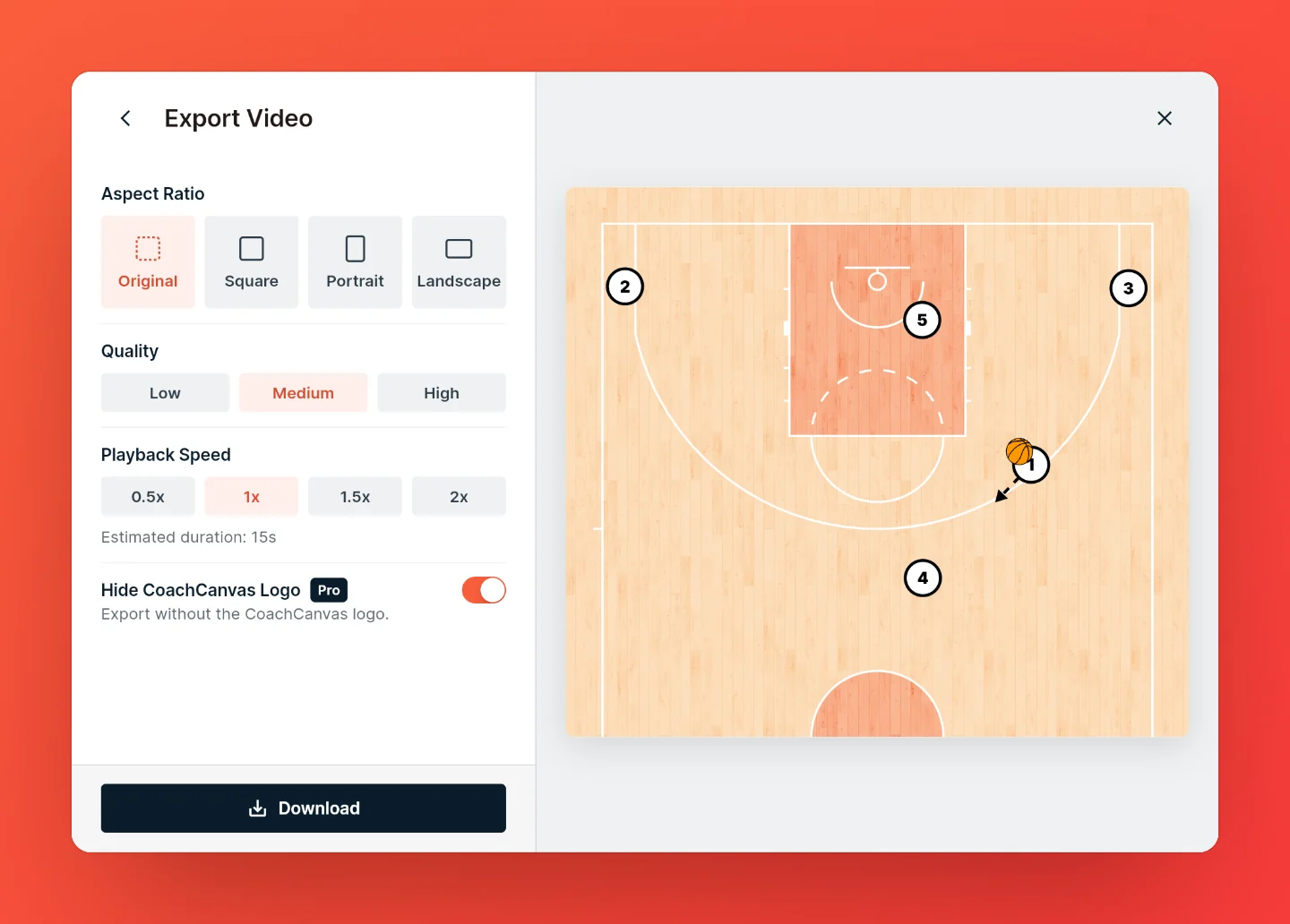
Customize your export
| Option | What it does |
|---|---|
| Aspect Ratio | Original keeps the court's own shape. Square, Portrait and Landscape fit the whole court into that shape and fill the space around it with a blurred copy of the play, so nothing gets cropped. |
| Quality | Low, Medium or High. Higher quality makes a larger file. |
| Playback Speed | 0.5x, 1x, 1.5x or 2x. The estimated length of the video shows below. |
| Hide CoachCanvas Logo | Leaves the CoachCanvas logo off the video. Pro only. |
A video is at most two minutes long. If a play runs longer, the estimate says so and the video stops there. A faster playback speed fits more of the play.
Where the video goes
In the web app, the video downloads as an MP4. In the iPhone and iPad app, the button says Save to Photos, and the video lands in the Photos app.
Export several plays at once
On the dashboard, select the plays you want and choose Export, then Video. You get one video per play. In the web app they download together in a ZIP file.
A playbook exports as a PDF only. To get videos of its plays, select them on the dashboard instead.
Keep it up to date
A video is a snapshot. When you change the play, export again. If you'd rather your team always sees the latest version, share a link: it animates the play right on the page.